If you picked up a Zelotes gaming or vertical ergonomic mouse—especially the wildly popular Zelotes C-18 with its thumb joystick, or workhorse wired models like the T-90, T-80, and C-12—plugging it into Windows 10 or Windows 11 works immediately for basic cursor tracking. However, without installing the official Zelotes mouse software, half of your hardware sits locked: you cannot customize the 11 programmable buttons, map the 5-direction thumb joystick, record keyboard macros, or fine-tune your DPI stages and 1000Hz polling rate.
The biggest mistake new owners make when searching for a gaming mouse software download for Zelotes hardware is grabbing the wrong file. Unlike big-box brands that ship one bloated 500MB universal control panel, Zelotes builds ultra-lightweight, model-specific driver executables. Installing the T-90 utility for a C-18 mouse immediately throws a frustrating “Device is disconnected” error.
In this complete 2026 BuzzTechy guide, we break down the exact official download portal, model-by-model driver matrix, Windows 11 SmartScreen security steps, C-18 joystick remapping tricks, and how to flash your macros permanently into onboard memory.
Quick Setup Summary for Zelotes Mouse Owners:
• Official Download URL: Download drivers exclusively fromzelotes.cn/en/download.html—avoid third-party DLL or ad-wrapped mirror sites.
• Model-Specific Rule: Flip your mouse over and verify the exact model code (e.g., C-18, T-90, T-80, C-12) before downloading.
• Onboard Memory Trick: Always click Apply inside the Windows software to flash macros and DPI levels to the mouse chip—afterward, your settings work natively on macOS and Linux too.
1. Zelotes Mouse Software Matrix: Match Your Exact Model First
Because each Zelotes mouse uses a different optical sensor (such as the PixArt PMW3325 on the C-18) and microcontroller layout, each hardware model pairs with its own standalone configuration package. Use the comparison matrix below to identify your exact model and confirm whether a dedicated Windows software suite is available for it.
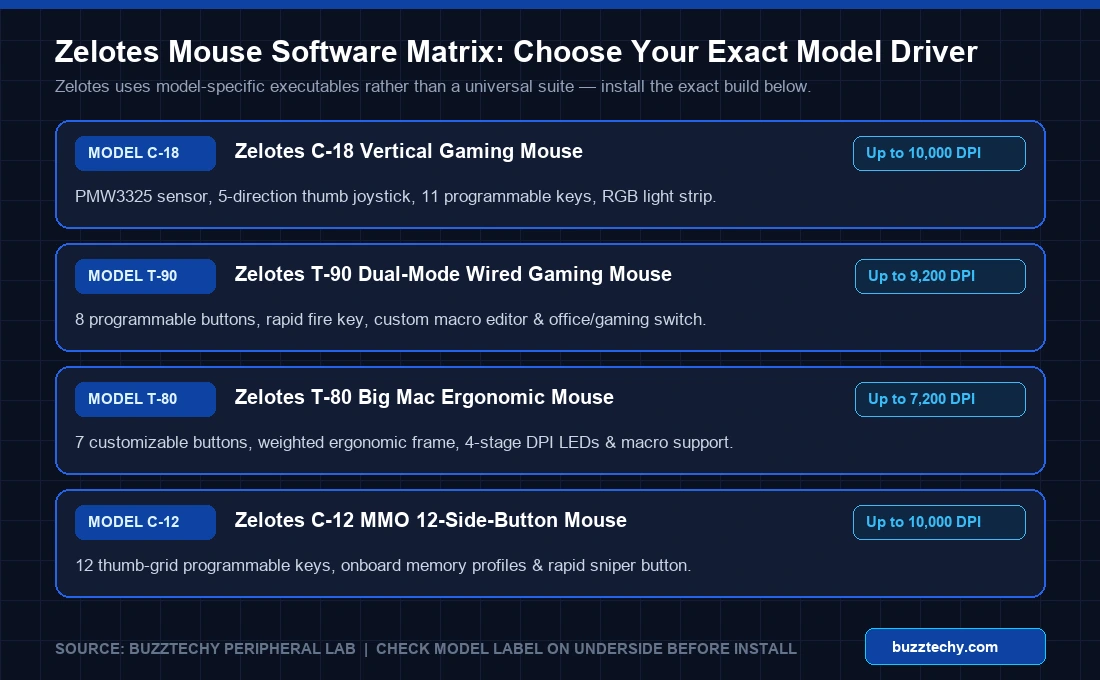
| Zelotes Model | Design Style | Max DPI Range | Programmable Inputs | Dedicated Software Support |
|---|---|---|---|---|
| Zelotes C-18 | Vertical Ergonomic Gaming | Up to 10,000 DPI (PMW3325) | 11 Buttons + 5-Way Thumb Joystick | ✅ Yes (Dedicated C-18 Driver) |
| Zelotes T-90 | Wired Symmetrical Gaming | Up to 9,200 DPI | 8 Buttons + Rapid Fire Key | ✅ Yes (Dedicated T-90 Driver) |
| Zelotes T-80 | Wired Ergonomic (“Big Mac”) | Up to 7,200 DPI | 7 Buttons + DPI Indicator LEDs | ✅ Yes (Dedicated T-80 Driver) |
| Zelotes C-12 | Wired MMO Thumb-Grid | Up to 10,000 DPI | 12 Side Thumb Buttons + Sniper Key | ✅ Yes (Dedicated C-12 Driver) |
| Zelotes F-35 / F-36 | Wireless / Bluetooth Vertical | Up to 2,400–3,200 DPI | 6 Standard Buttons | ℹ️ Plug & Play HID (No Macro App) |
2. How to Download & Install Zelotes Mouse Software on Windows 10 / 11
Searches for zelotes mouse software c-18 spike every month because users often misplace the mini-CD included in older retail boxes (or own modern laptops without optical drives). Fortunately, Zelotes hosts all current builds directly online.
- Open the Official Portal: Navigate to
https://zelotes.cn/en/download.html(or visitzelotes.cnand select Download → Software Driver Download from the top navigation menu). - Locate Your Exact Model Entry: Scroll through the model list until you see your exact model—for example, “ZELOTES C-18 Gaming Mouse Driver” or “ZELOTES T-90 Gaming Mouse Driver”—and click the download button.
- Extract the Compressed Package: The file downloads as a
.zipor.rararchive. Right-click the archive and choose Extract All into a clean folder on your PC (do not run the installer directly inside the compressed preview window). - Connect Directly to a Rear Motherboard USB Port: Before double-clicking
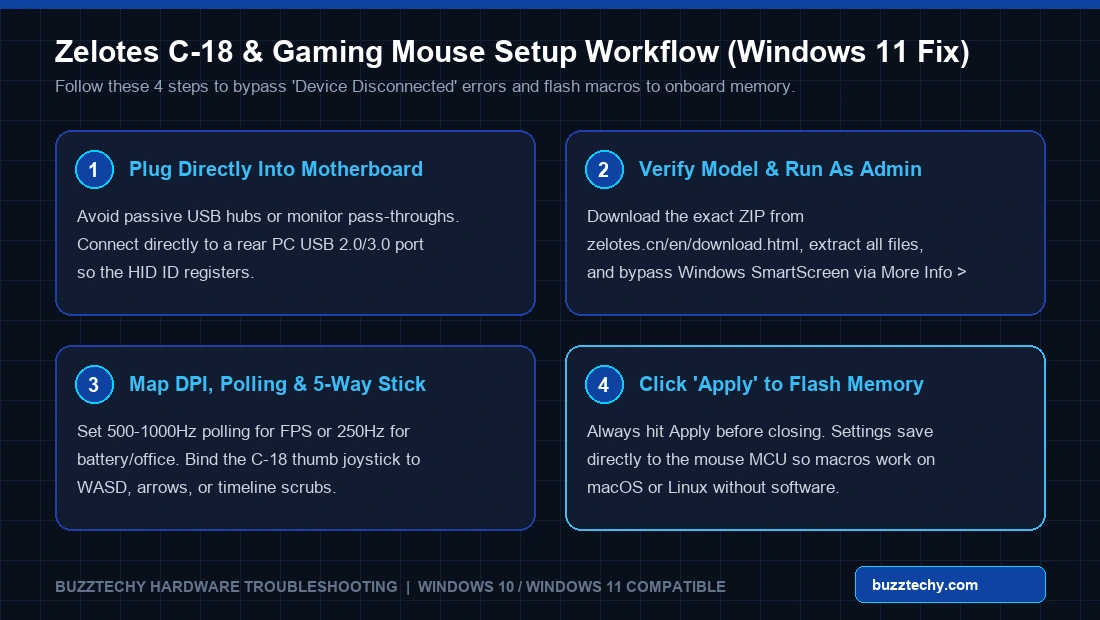
Setup.exe, plug your Zelotes mouse straight into a primary USB port on your PC or laptop rather than an unpowered USB hub or monitor pass-through. - Handle Windows SmartScreen Safely: Because Zelotes’ lightweight driver executables often lack a costly Microsoft EV signature, Windows 11 Defender SmartScreen may display a blue warning popup. If you downloaded directly from
zelotes.cn(and optionally double-checked the hash on VirusTotal), click More info → Run anyway, then run the setup wizard as Administrator.
3. Deep Dive: Programming the Zelotes C-18 5-Way Joystick, DPI & Macros
The Zelotes C-18 is easily the standout star in the lineup—combining a wrist-saving 60-degree vertical posture with a crisp PixArt PMW3325 optical sensor and a tactile 5-direction thumb joystick (Up, Down, Left, Right, and Center Press). Inside the C-18 software dashboard, you get full control across four primary tabs:
A. Remapping the 5-Direction Thumb Joystick
Out of the box, the C-18 thumbstick maps to basic arrow or movement keys. Inside the Zelotes C-18 driver UI, you can completely transform how it behaves depending on your workflow:
- For FPS & Battle Royale Gaming: Bind the four joystick directions to W / A / S / D or quick-utility slots (Grenade, Armor Plate, Medkit, Melee), and map the center click to Reload or Ping. This frees your keyboard hand for complex crouch-jumping and strafing.
- For Video Editing (Premiere Pro / DaVinci Resolve) & CAD: Map Left/Right to Frame Step or Timeline Scrubbing, Up/Down to Zoom In/Out, and Center Click to Razor Cut (
Ctrl+KorB). Combined with the vertical grip, it eliminates wrist pronation strain during 8-hour editing sessions. - For Excel & Coding Productivity: Map the stick to Copy, Paste, Undo, Redo, and Virtual Desktop Switching (
Win+Ctrl+Left/Right).
B. Tuning DPI Stages & Polling Rate (125Hz vs. 1000Hz)
Under the Performance / DPI tab, Zelotes lets you customize up to 5–6 independent DPI stages (from 500 DPI up to 10,000 DPI on the C-18/C-12, or 9,200 DPI on the T-90) and pair each stage with an identifying LED color so you know your sensitivity at a glance.
- Recommended FPS Sweet Spot: Enable only 2 or 3 DPI stages (for example, 800 DPI and 1600 DPI) and disable unused steps so you never accidentally cycle into 10,000 DPI mid-firefight.
- USB Polling Rate: Choose between 125Hz (8ms), 250Hz (4ms), 500Hz (2ms), and 1000Hz (1ms). Set 1000Hz on modern gaming desktops for instantaneous cursor response, or drop to 500Hz if you use an older laptop CPU where 1000Hz USB interrupts cause slight frame-time micro-stutter.
- Disable Windows Pointer Acceleration: After setting your DPI in Zelotes software, open Windows Mouse Settings → Additional mouse settings → Pointer Options and uncheck “Enhance pointer precision” for true 1:1 raw sensor tracking.
C. Creating Custom Macros & Flashing Onboard Memory
The built-in Macro Editor records keyboard presses, mouse clicks, and exact millisecond delays between inputs:
- Click New Macro, give it a clear name (e.g., “Rapid Buy” or “Timeline Export”), and press Start Record.
- Type your key combination, hit Stop Record, and optionally adjust or remove excessive keystroke delays for snappy execution.
- Return to the Button Assignment screen, select one of your programmable buttons (or a joystick direction), choose Macro → [Your Macro], and select playback mode (Execute once, loop while held, or toggle until pressed again).
- Most Important Step: Click Apply (bottom-right corner). Pressing Apply writes the profile directly into the Zelotes mouse’s onboard EEPROM/MCU memory.
4. Troubleshooting Common Zelotes Driver & Connection Issues
Fix 1: “Device Is Disconnected” or “Please Connect Gaming Mouse”
This error happens for three primary reasons: (1) You downloaded the driver for a different Zelotes model (e.g., T-90 software will never detect a C-18 hardware ID); (2) Your mouse is plugged into an unpowered USB hub or USB-C adapter that drops device descriptor flags; or (3) Another mouse suite (like Razer Synapse or Logitech G Hub) is conflicting at the HID filter layer. Unplug extra dongles, connect the Zelotes mouse directly to a rear motherboard USB port, and reinstall the exact model build.
Fix 2: Using Zelotes Macros on macOS, Linux, or Steam Deck
Zelotes does not offer a native macOS .dmg or Linux GUI application. However, because models like the C-18, T-90, and C-12 feature onboard hardware memory, you only need access to a Windows PC once. Configure your DPI steps, joystick keystrokes, and RGB lighting on Windows, click Apply, and then plug the mouse into your MacBook or Linux workstation—all key bindings and macros execute straight from the mouse hardware itself.
Fix 3: Double-Clicking or Sensor Jitter on High Polling Rates
If your older Zelotes mouse begins registering accidental double-clicks or minor cursor skips at 1000Hz, lower the polling rate inside the software to 500Hz, clean the optical lens recess with compressed air, and ensure you are tracking on a clean cloth mousepad rather than a reflective desk surface.
5. Frequently Asked Questions (FAQ)
Is Zelotes mouse software safe to install on Windows 11?
Yes, provided you download the official archive directly from zelotes.cn/en/download.html. Small peripheral brands often skip costly Microsoft EV code-signing certificates, which triggers a generic Windows SmartScreen alert even on clean software. Never download “Zelotes drivers” from random pop-up driver-updater websites.
Do I need to keep the Zelotes software open in the background?
No. Once you click Apply, your DPI stages, RGB patterns, polling rate, and button macros are stored inside the mouse’s onboard memory. You can close the tray icon completely to save RAM and CPU cycles while gaming.
Can the Zelotes C-18 thumb joystick function as an analog controller stick?
No—the C-18 joystick operates as a 5-way digital directional switch (Up, Down, Left, Right, Center Press), not a 360-degree analog Hall Effect stick. If you need true 360-degree analog stick movement and optical microswitches for PC gaming, check out our Machenike G5 Pro V2 PC Software & KeyLinker Controller Guide.
Why doesn’t my wireless Zelotes F-35 mouse show up in the software?
Wireless ergonomic models such as the Zelotes F-35 and F-36 are built strictly as plug-and-play HID office/vertical mice without onboard programmable macro chips, so they do not use standalone customization software.
Explore more PC gaming hardware benchmarks, controller guides, and Windows software tips on BuzzTechy: