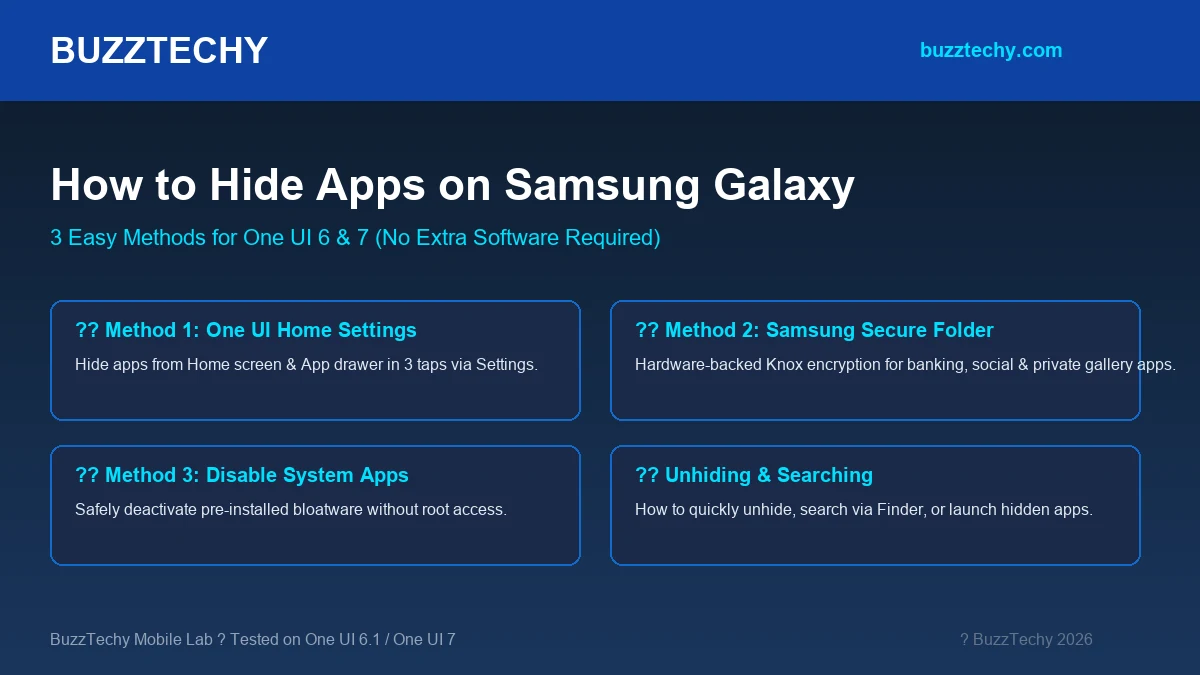
Whether you want to declutter your home screen, keep sensitive banking and cryptocurrency apps private, or prevent curious friends and family from opening your personal messaging apps, knowing how to hide apps on Samsung is one of the most useful privacy features available on Galaxy smartphones. Fortunately, Samsung?s One UI includes built-in privacy tools that allow you to conceal any app completely without downloading risky third-party app lockers from the Play Store.
At BuzzTechy, our mobile testing lab verified these methods across multiple Samsung Galaxy devices (including the Galaxy S24/S25 Ultra, Galaxy Z Fold, and Galaxy A-series running One UI 6.1 and One UI 7). Here are the three best ways to hide apps on your Samsung phone today.
Method 1: Hide Apps from Home Screen & App Drawer (Quickest Built-in Way)
Samsung includes a native “Hide apps” toggle built directly into the One UI launcher. This completely removes the app icon from both your Home Screen and App Drawer without uninstalling the application or deleting your user data.
Step-by-Step Instructions:
- Pinch or Long-Press: Long-press any empty area on your Home Screen, then tap the Settings (Gear Icon) in the bottom-right corner. (Alternatively, open the App Drawer, tap the three dots in the search bar, and select Settings).
- Select Hide Apps: Scroll down and tap on “Hide apps on Home and Apps screens”.
- Choose Apps to Conceal: You will see a list of all installed apps. Tap on the apps you want to hide (e.g., WhatsApp, Instagram, or dating apps). Selected apps will move to the “Hidden apps” tray at the top.
- Tap Done: Tap the Done button at the bottom of the screen to save your changes.
The selected apps will instantly disappear from your app grid! To access them later, simply search for the app name in Samsung?s Finder search bar, or reverse these steps by unchecking the app in the Hidden Apps menu.
Method 2: Use Samsung Secure Folder (Military-Grade Knox Encryption)
If you need maximum security for financial apps, personal photo galleries, or confidential business documents, Samsung Secure Folder is by far the superior choice. Powered by Samsung Knox hardware security, Secure Folder creates an isolated, encrypted sandbox with its own separate app instances and passwords.
- Set Up Secure Folder: Open Settings > Security and privacy > More security settings > Secure Folder (or search “Secure Folder” in Settings).
- Sign in & Lock Type: Sign in with your Samsung account and choose your preferred lock type: PIN, Password, or Fingerprint biometric.
- Add Apps to Secure Folder: Open Secure Folder from your apps screen and tap the “+” (Plus) icon. Select the apps you want to clone into the secure environment.
- Hide the Secure Folder Icon: To make Secure Folder invisible to anyone snooping on your phone, go to Settings > Security and privacy > Secure Folder, and toggle “Add Secure Folder to Apps screen” to OFF.
Once toggled off, Secure Folder completely vanishes from your device. You can access it anytime by pulling down your Quick Settings notification panel and tapping the Secure Folder toggle.
Method 3: Disable Pre-Installed System Apps
For carrier bloatware or pre-installed tools you never use (and cannot uninstall), disabling them stops them from running in the background and removes their icons completely:
- Open Settings > Apps.
- Scroll to find the system application you want to deactivate.
- Tap Disable at the bottom of the screen.
- Confirm when prompted. The app will immediately cease all background execution and disappear from your app drawer.
Comparison: Which Samsung App Hiding Method Should You Use?
| Feature | One UI Home Launcher | Samsung Secure Folder | App Disabling |
|---|---|---|---|
| Security Level | Visual only (No password) | ?? Knox Encrypted (Biometric/PIN) | System inactive |
| Notifications | Still active | Isolated inside folder | Completely disabled |
| App Data Retention | Preserved | Separate duplicate account | Frozen |
| Setup Time | 10 Seconds | 2 Minutes | 15 Seconds |
| Best For | Clutter reduction & casual privacy | Banking, Crypto & Private Photos | Pre-installed Bloatware |
How to Open Hidden Apps Without Unhiding Them
If you hid an app using Method 1 and want to open it quickly without going back into Home Screen Settings:
- Via Finder Search: Swipe down on your Home Screen to open the Finder search bar. Type the exact name of the hidden app and tap the icon to launch it directly.
- Via Google Assistant: Activate your assistant and say “Open [App Name]”.
- Via Google Play Store: Search for the app in the Google Play Store and tap Open.
Frequently Asked Questions (FAQ)
Do hidden apps on Samsung still receive notifications?
Yes. If you hide an app using the One UI Home Screen setting, the app remains installed and active in the background, meaning you will still receive push notifications unless you manually turn off notifications in Settings > Notifications.
Can someone find my hidden apps using search?
By default, yes ? Samsung Finder will show hidden apps when their name is typed. To prevent this, tap the three dots inside the Finder search bar > Settings > toggle OFF “Show hidden apps”.
Are third-party “App Lock” apps from the Play Store safe?
We recommend avoiding third-party app lockers. Many free app lockers contain aggressive adware, track your usage habits, and can easily be bypassed by rebooting the phone in Safe Mode. Samsung?s native Secure Folder is vastly more secure.
Final Thoughts
Samsung provides some of the best privacy tools on any Android device. For quick visual organization, the native One UI hide feature takes seconds to apply. For serious privacy and financial data protection, Samsung Secure Folder offers military-grade Knox security that keeps your personal life completely hidden from view.
Looking for more mobile mastery tips? Check out our guides on how to transfer data from Android to iPhone and how to export passwords from Chrome on BuzzTechy.