If you just unboxed the Machenike G5 Pro V2 wireless controller and started searching Google or Reddit for the Machenike G5 Pro V2 software PC download, you probably noticed something confusing right away: unlike Razer Synapse or Logitech G Hub, there is no single flashy desktop installer sitting on the homepage waiting for you. Instead, the G5 Pro V2 splits its software ecosystem between the KeyLinker companion app for button remapping and analog curve tuning, and dedicated Windows PC firmware packages used to keep both the controller and its 2.4GHz wireless receiver in sync.
Getting the right file matters enormously with this gamepad. Hardware enthusiasts on r/Controller praise the G5 Pro V2 for pairing hot-swappable K-Silver JH20 Hall Effect joysticks with ultra-fast optical microswitch buttons and a 1000Hz polling rate—features normally found on $150+ pro controllers. Yet those same Reddit threads are full of gamers asking why their 2.4GHz dongle suddenly stopped pairing after a calibration run, or where to download the real PC utility without stumbling onto sketchy driver mirrors.
At BuzzTechy, we compiled every verified download path, KeyLinker tuning trick, M1–M4 macro mapping step, and community-tested firmware fix so you can unlock 100% of your Machenike G5 Pro V2 on Windows 10, Windows 11, Android, iOS, and Nintendo Switch.
Quick Takeaways for Machenike G5 Pro V2 Users:
• Customization App: Use KeyLinker (Android, iOS, or Windows PC bridge) via Bluetooth to remap M1–M4 back/shoulder buttons, tune deadzones, and save 4 onboard profiles.
• Official Firmware Portal: Always pull PC firmware updaters fromglobal.machenike.com(or the officialmachenike.comPeripheral Drivers tab for latest builds).
• Critical Reddit Warning: Never update only the controller firmware without updating the 2.4GHz USB dongle receiver in the same session, or wireless input will desync.
1. Machenike G5 Pro V2 Hardware & Software Ecosystem Overview
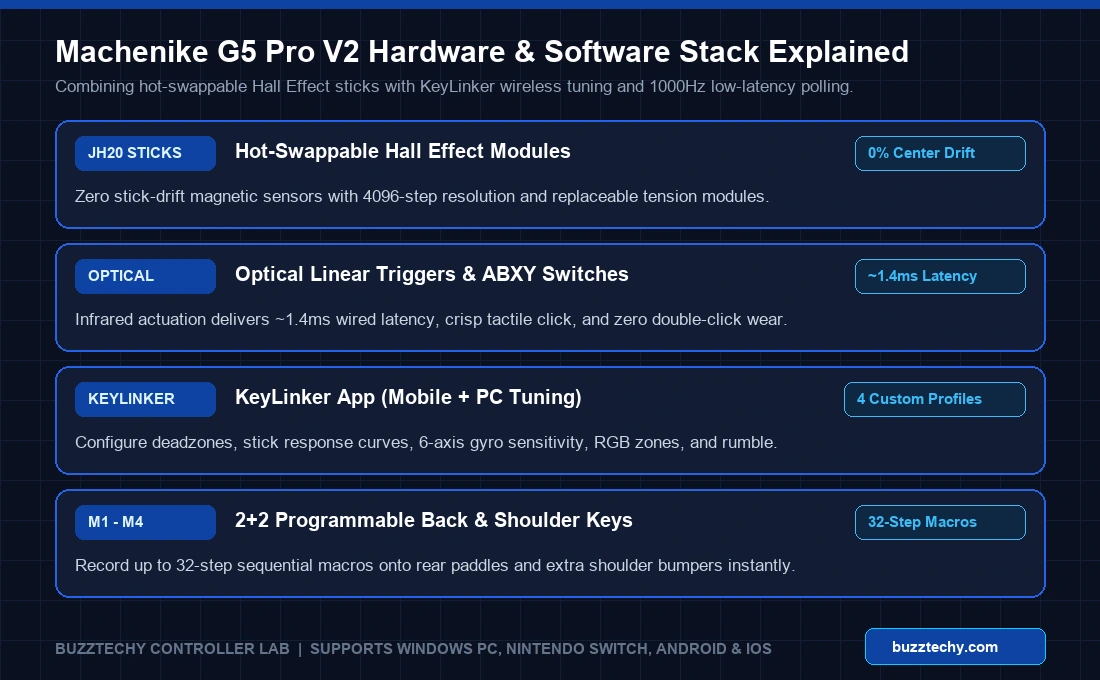
Before installing drivers or changing stick curves, it helps to understand what your software is actually controlling inside the G5 Pro V2 chassis. Machenike upgraded almost every internal component compared to the original G5 Pro, moving from mechanical face switches to optical actuation and introducing swappable magnetic stick modules.
| Specification Category | Machenike G5 Pro V2 Feature | How Software Controls It |
|---|---|---|
| Thumbsticks | Hot-swappable K-Silver JH20 Hall Effect (4096-level resolution) | Inner/outer deadzone, circularity/square output, anti-deadzone curve in KeyLinker |
| Face Buttons & Triggers | Optical microswitch ABXY + Optical linear triggers (~1.4ms latency) | Hair-trigger actuation point & full-range vs rapid trigger toggle |
| Extra Programmable Keys | 2+2 Layout (2 back paddles + 2 extra shoulder buttons M1–M4) | Single-key remapping or up to 32-step sequential macro recording |
| Polling Rate | 1000Hz (Wired USB-C & 2.4GHz Wireless X-Input) | Requires Windows PC mode + synced 2.4GHz receiver firmware |
| Motion & Haptics | 6-Axis Gyroscope + Asymmetric Dual Rumble Motors | Gyro-to-stick emulation & 0–100% vibration intensity sliders |
| Connectivity Modes | Tri-Mode: 2.4GHz Dongle, Wired USB-C, Bluetooth 5.0 | Switchable via physical rear toggle (PC / NS / Mobile) |
2. Where to Download Machenike G5 Pro V2 Software Safely (PC & Mobile)
One of the biggest pain points reported on machenike g5 pro v2 software reddit threads is finding the exact legitimate download link. Many third-party “driver download” aggregators bundle unrelated adware inside generic EXE wrappers. Stick strictly to Machenike’s official distribution channels:
Option A: KeyLinker Mobile & Companion App (Recommended for Daily Mapping)
For 90% of customization—including remapping back buttons, tuning stick deadzones, adjusting trigger sensitivity, and configuring RGB strips—Machenike uses the cross-platform KeyLinker application. You do not need to keep the app running in the background while gaming on your PC; KeyLinker writes your adjustments straight into the controller’s onboard flash memory.
- Android & iOS: Search for KeyLinker directly in the Google Play Store or Apple App Store (or scan the QR code printed inside the official Machenike G5 Pro V2 manual).
- Why gamers prefer KeyLinker via Bluetooth: You can sit at your Windows PC playing Apex Legends, Call of Duty, or Rocket League over the 2.4GHz dongle, connect KeyLinker simultaneously on your phone over Bluetooth Low Energy, tweak your deadzone from 5% down to 2%, hit Apply, and test the feel in-game immediately without Alt-Tabbing.
Option B: Machenike Official PC Firmware & Calibration Package
If your controller is experiencing input stutter, 2.4GHz dropouts, or trigger calibration drift—or if you want to update to the latest 1000Hz wireless firmware—you need the Windows PC flashing utility:
- Visit the official international support hub at global.machenike.com and open the Support / Download page. Search for G5 Pro V2 to grab the official manual and global firmware zip.
- Pro Reddit Tip (Missing PC Package?): Occasionally, Machenike’s English global portal lags a version behind its domestic Chinese portal (
machenike.comunder the Peripheral Drivers / 外设驱动 menu). Users on r/Controller regularly pull the newest zipped PC updater and 2.4GHz dongle firmware directly from the CN support section using browser translation. - Always extract the entire
.zipor.rarfolder to your Desktop before launching the.exetool—never run the updater from inside a compressed archive window. - If Windows Defender SmartScreen shows an “Unknown Publisher” prompt (common for Chinese peripheral updaters lacking expensive EV code-signing certificates), scan the file on VirusTotal first, verify clean results, and click More info → Run anyway.
3. The Famous Reddit 2.4GHz Dongle & Trigger Bug Fix (Step-by-Step)
Search “machenike g5 pro v2 software reddit” and one specific problem pops up more than anything else: a user downloads a calibration tool, runs a firmware flash, and suddenly the controller works perfectly over a USB-C cable—yet refuses to respond properly over the 2.4GHz wireless dongle, or registers RT/LT triggers as stuck at 100% pressed.
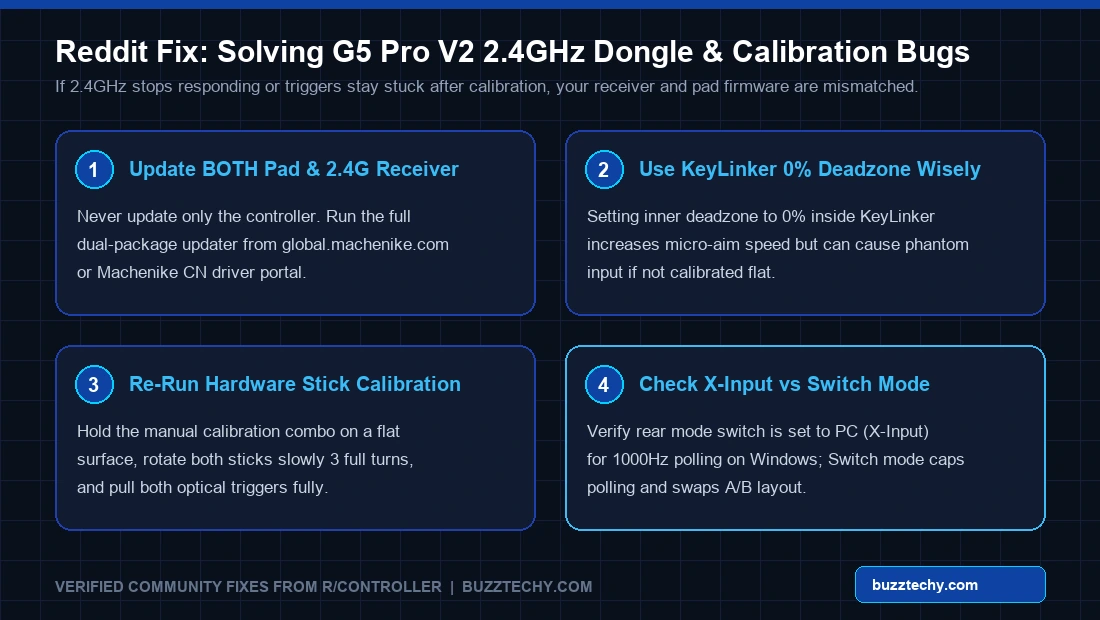
Why does this happen? Because inside the Machenike G5 Pro V2 ecosystem, the gamepad MCU and the 2.4GHz USB receiver dongle run separate firmware images. Updating the gamepad alone to a newer protocol version while leaving the USB dongle on factory firmware causes handshake desynchronization.
How to Fix Desynced 2.4GHz Firmware & Phantom Trigger Input
- Plug In Both Devices Directly: Connect the 2.4GHz USB dongle directly into a motherboard USB port (avoid unpowered front-panel hubs), and connect the G5 Pro V2 controller via its braided USB-C cable.
- Flash Both Firmware Files Together: Open the extracted Machenike PC updater package. Ensure you flash both the receiver/dongle binary and the gamepad binary sequentially as instructed inside the updater folder.
- Perform Manual Flat-Surface Hardware Calibration: Place the controller flat on your desk without touching the sticks or triggers. Activate Machenike’s manual calibration combo (check your model card—typically holding the designated calibration keys until the LED flashes), slowly rotate both JH20 Hall Effect thumbsticks in 3 full clockwise and counter-clockwise circles, and pull both optical triggers smoothly to their maximum physical stops 3 times before exiting calibration.
- Check the Rear Mode Switch: Ensure the physical mode switch on the back of the G5 Pro V2 is slid cleanly into PC (X-Input) mode. Running in Nintendo Switch (NS) mode on Windows alters button mappings and prevents full 1000Hz X-Input polling.
4. KeyLinker Pro Tuning Guide: Deadzones, M1–M4 Macros & Polling Rate
Once your firmware is synced and stable, KeyLinker turns the G5 Pro V2 into a tournament-grade PC controller. Here are the optimal settings tested for FPS, racing, and action RPG titles:
Optimal Hall Effect Stick Deadzones & Response Curves
- Competitive Shooters (Apex, Warzone, Fortnite): Set the inner deadzone between 2% and 4%. Even though K-Silver JH20 Hall Effect modules eliminate potentiometer wear-and-tear drift, setting an absolute 0% deadzone can still expose tiny spring recentering variance. A 2% buffer keeps your crosshair rock-steady while still allowing instant micro-tracking.
- Stick Trajectory Mode (Circular vs. Square/Raw): Keep Circular enabled for traditional console-like diagonal consistency, or toggle Raw/Square if you play competitive games like Rocket League that reward maximum diagonal corner reach.
- Swappable Stick Tension Modules: Remember that the G5 Pro V2 supports physically swapping the JH20 stick modules. If you install stiffer or looser tension sticks, always re-run center calibration afterward inside KeyLinker or via the hardware combo.
Mapping M1–M4 Back Paddles & Extra Shoulder Buttons
The G5 Pro V2’s 2+2 layout gives you two ergonomic rear paddles plus two extra top shoulder buttons sitting right next to LB/RB. Inside KeyLinker’s Key Map tab:
- Bind Jump (A) and Crouch/Slide (B) to your two main rear paddles so your right thumb never has to leave the aiming stick during gunfights.
- Use the two extra top shoulder buttons for Reload (X) or Ping/Heal, or assign a multi-step Macro (KeyLinker supports recording up to 32 sequential actions with custom millisecond intervals).
- Always tap Save/Apply: Your custom profile saves directly onto the controller’s onboard storage slots, meaning your back paddles will work natively on Steam, Xbox Game Pass PC, and emulators without extra software overhead.
5. How to Verify 1000Hz Polling Rate & Circularity After Setup
Don’t guess whether your software changes took effect—verify them immediately using browser or open-source diagnostic utilities:
- Hardware Tester (Gamepad Tester): Plug in via 2.4GHz or USB-C in PC X-Input mode, open a web-based gamepad analyzer, and toggle Circularity Test. Healthy JH20 Hall Effect sticks typically score an average error rate under 1%–4% in circular mode.
- Polling Rate Check (Gamepadla / Polling): Run a polling interval test over 5 seconds of stick circles. In PC X-Input mode over wired USB-C or a clean 2.4GHz line-of-sight connection, you should see ~1000Hz (1.0ms interval), whereas standard Bluetooth caps significantly lower (typically 125Hz–250Hz).
- Windows Optimization Tip: If you notice intermittent USB polling spikes in Windows 11, follow our Windows 11 Telemetry & Background Service Optimization Guide and check our Gaming Hardware & Laptop Benchmarks Guide for low-latency PC setup tips.
6. Frequently Asked Questions (FAQ)
Does Machenike G5 Pro V2 have dedicated Windows PC software?
Machenike uses a hybrid approach: firmware flashing and calibration recovery packages are distributed as Windows .exe utilities on global.machenike.com and machenike.com, while day-to-day button remapping, RGB, gyro, and deadzone curves are handled cleanly through the KeyLinker app (mobile Bluetooth bridge or PC utility).
Why won’t KeyLinker detect my Machenike G5 Pro V2?
KeyLinker communicates with the controller over Bluetooth Low Energy (BLE), not the 2.4GHz USB dongle. Make sure Bluetooth is enabled on your phone, turn on the controller, and grant Location/Bluetooth Nearby Device permissions so KeyLinker can discover the G5 Pro V2 device ID.
Are macros and back-button bindings stored on the controller?
Yes. Once you save a configuration in KeyLinker, it writes directly to the G5 Pro V2’s onboard memory. You can close the app completely and continue using your M1–M4 paddles and deadzones on PC, Switch, or Steam Deck.
Is it safe to set 0% deadzone on the JH20 Hall Effect sticks?
Yes, it will not harm the controller, though many competitive players on Reddit still prefer a 1%–3% inner deadzone to absorb natural spring resting tolerances when taking their thumb off the stick.
Looking for more PC peripheral setup tutorials and software guides? Explore our latest hardware coverage on BuzzTechy: