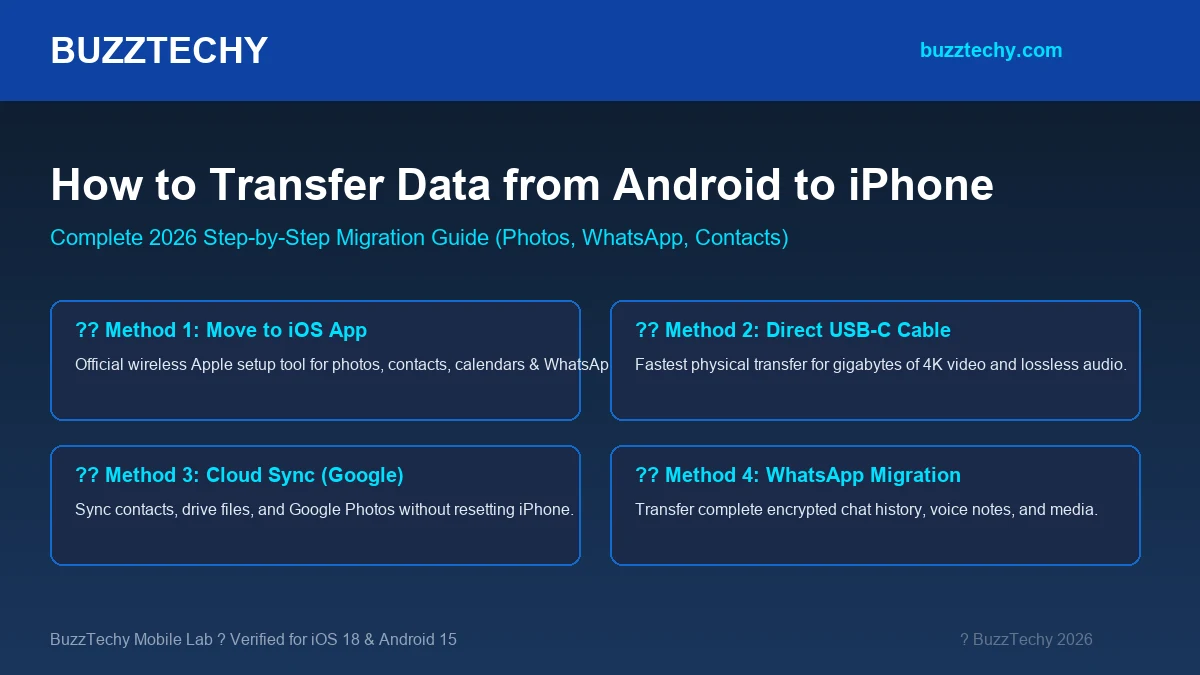
Switching from an Android smartphone to a brand-new iPhone is an exciting upgrade, but figuring out how to transfer data from Android to iPhone without losing precious photos, WhatsApp chat history, contacts, or voice memos can feel overwhelming. Many users worry about corrupted backups or hours wasted waiting for slow Wi-Fi transfers.
At BuzzTechy, we tested every migration method across the latest Android 14/15 and iOS 18 devices to give you a foolproof, step-by-step walkthrough. Whether your iPhone is fresh out of the box or already set up, this comprehensive guide covers all verified transfer methods.
Pre-Transfer Checklist: What You Need Before You Start
- Charge Both Devices: Ensure both your Android and iPhone have at least 80% battery or are plugged into power outlets during transfer.
- Connect to High-Speed Wi-Fi: Keep both phones on the same stable 5GHz Wi-Fi network. Turn off mobile data (cellular) on the Android phone to prevent interruptions.
- Check Storage Capacity: Make sure your new iPhone has enough internal storage to accommodate all data from your Android device.
- Update WhatsApp: Ensure WhatsApp is updated to the latest build on both devices before initiating the transfer.
Method 1: The Official ‘Move to iOS’ Wireless Transfer (Best for New iPhones)
Apple?s official Move to iOS app remains the cleanest way to transfer contacts, message history, camera photos/videos, web bookmarks, mail accounts, calendars, and WhatsApp chats seamlessly.
Step-by-Step Walkthrough:
- Turn On Your New iPhone: Begin setup until you reach the Apps & Data (or Transfer Your Apps & Data) screen.
- Select Transfer Option: Tap “From Android”. A six-digit or ten-digit temporary code will appear on the iPhone screen.
- Open Move to iOS on Android: Download and launch the free Move to iOS app from the Google Play Store on your Android device. Agree to the terms and grant required permissions.
- Enter the Code: Type the code shown on your iPhone into your Android phone. Your iPhone will create a private temporary Wi-Fi network that your Android device will automatically join.
- Select Content to Transfer: Check the boxes for Contacts, Camera Roll, Messages, Display Settings, and WhatsApp.
- Wait for Completion: Keep both devices side-by-side until the loading bar fills completely on the iPhone. Even if the Android phone says “Transfer Complete,” wait until the iPhone confirms setup!
Method 2: High-Speed Direct USB-C Cable Transfer (Fastest & Most Reliable)
With modern iPhones featuring universal USB-C ports, you no longer have to rely exclusively on wireless Wi-Fi transfers. A physical USB-C to USB-C cable transfer is 3x to 5x faster and immune to wireless signal drops.
During the Move to iOS initial pairing screen, connect a high-speed USB-C data cable between your Android phone and your iPhone. The system will detect the physical connection and transfer 50GB+ of 4K photos and media in minutes rather than hours.
How to Transfer WhatsApp from Android to iPhone (Without Losing Chats)
WhatsApp transfer between operating systems used to require expensive third-party software. Today, it is fully integrated into the Move to iOS workflow:
- On the Transfer Data screen in Move to iOS, select WhatsApp.
- WhatsApp will open on your Android phone and prompt you to tap “Start”.
- WhatsApp packages and encrypts your chat database, voice notes, and media for export.
- Once the migration completes, complete iPhone setup, download WhatsApp from the App Store, and log in with the exact same phone number.
- Tap “Start” when prompted on the iPhone, and all your historical conversations will decrypt and appear seamlessly.
How to Transfer Data If Your iPhone Is Already Set Up
If you have already configured your iPhone and don’t want to factory reset it to use Move to iOS, you can migrate your essential data using cloud synchronization:
| Data Type | Best Solution (No Reset) | How It Works |
|---|---|---|
| Contacts & Calendars | Google Account Sync | Settings > Mail > Accounts > Add Google Account > Toggle Contacts ON |
| Photos & Videos | Google Photos App | Download Google Photos on iPhone > Sign in with same account to view all media |
| Documents & Files | Google Drive / Dropbox | Upload files from Android > Access via iOS Files app integration |
| Bookmarks & Passwords | Chrome / Edge Sync | Log into Chrome on iOS > All saved bookmarks and credentials sync instantly |
Troubleshooting Common Android-to-iPhone Transfer Errors
- “Cannot Communicate with Device” Error: Turn on Airplane mode on your Android device, then turn ONLY Wi-Fi back on. This prevents mobile data from interfering with the local transfer channel.
- Transfer Stuck at 99% or “1 Minute Remaining”: Do not cancel! Large photo libraries take several minutes to catalog and index within iOS after the physical bytes have arrived. Give it 15-20 minutes.
- Wi-Fi Disconnecting: Forget all known Wi-Fi networks on the Android device so it doesn’t attempt to reconnect to your home router during the migration.
Frequently Asked Questions (FAQ)
Does Move to iOS transfer paid apps?
Free apps that exist on both Google Play and the Apple App Store will automatically download on your iPhone. However, paid apps or in-app purchases do not transfer across platforms because Google Play and Apple App Store use separate billing systems.
How long does an Android to iPhone transfer take?
Wireless transfers typically take between 20 to 45 minutes for 30GB?60GB of data. Direct cable transfers using USB-C cut that time down to roughly 10 to 15 minutes.
Will my SIM card and phone number work automatically?
If you have a physical nano-SIM, simply eject it from your Android phone and insert it into your iPhone. If your iPhone is an eSIM-only model (such as US iPhone models), contact your mobile carrier or use their app to initiate a rapid eSIM QR code profile transfer.
Final Thoughts
Migrating from Android to iOS has never been smoother. By utilizing the Move to iOS app with a direct USB-C connection, you can switch platforms in less than 30 minutes with every photo, text thread, and WhatsApp conversation intact.
Have questions about your phone transfer? Leave a comment below, and explore our guides on AI productivity tools and tech being released in 2026 for more hardware guides and reviews.