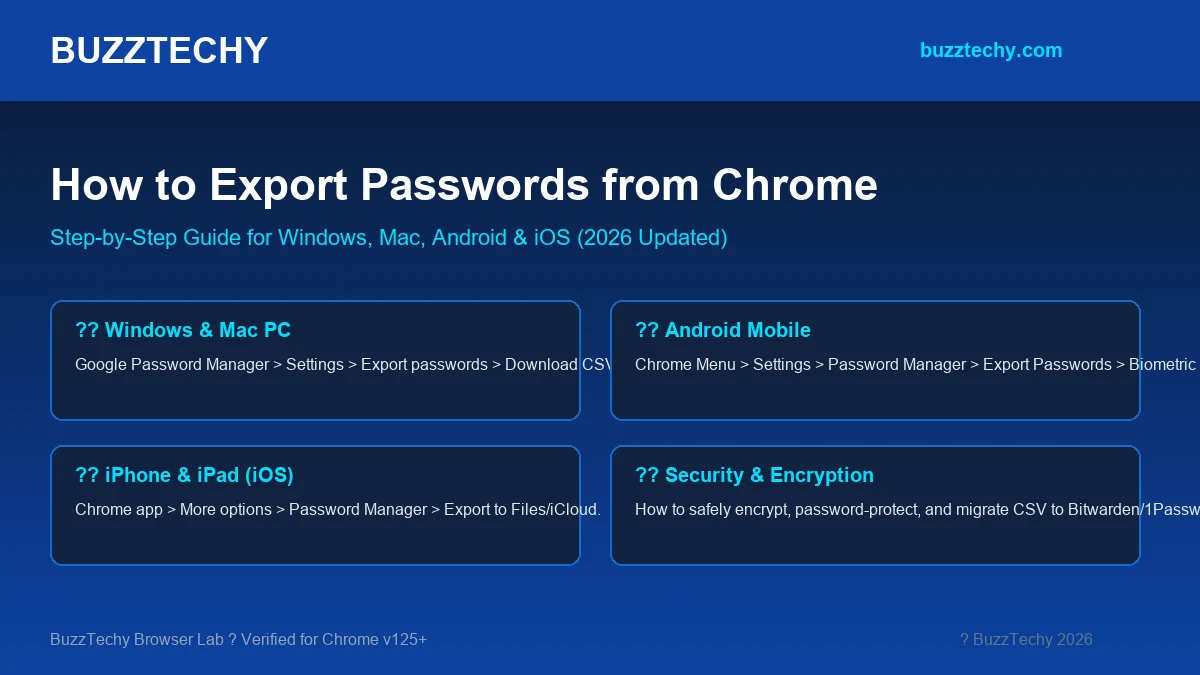
Whether you are switching to a dedicated password manager like Bitwarden or 1Password, moving to a new browser like Firefox or Brave, or simply creating an offline backup of your login credentials, knowing how to export passwords from Chrome is an essential digital skill. Google Chrome saves your usernames and passwords securely within the Google Password Manager, but extracting them into an easy-to-import CSV file requires a few specific steps.
At BuzzTechy, our browser security team tested the latest export workflow across Windows 11, macOS, Android 15, and iOS 18. Here is the complete, verified guide to exporting your Chrome passwords in under two minutes.
?? Critical Security Warning Before You Start
When you export passwords from Chrome, Google generates a plain-text CSV spreadsheet file. This file contains your website URLs, usernames, and unencrypted passwords in clear text. Anyone with physical or digital access to that file can read your login credentials.
- Never email or upload the raw CSV file to unencrypted cloud drives.
- Import immediately into your new password manager or browser.
- Permanently delete the CSV file (Shift + Delete on Windows, or Empty Trash on Mac) once the import is confirmed.
Method 1: How to Export Passwords from Chrome on Desktop (Windows & Mac)
Exporting from a desktop browser is the fastest and most convenient method. Follow these exact steps:
- Open Google Chrome: Click on your profile icon in the top-right corner and select Passwords (Key Icon), or directly type
chrome://password-manager/settingsin the address bar and press Enter. - Navigate to Settings: In the left sidebar of the Google Password Manager, click on Settings.
- Locate Export Passwords: Look for the “Export passwords” section and click the “Download file” button.
- Verify Your Identity: Chrome will prompt you for your operating system security authentication (Windows Hello PIN, fingerprint, or Mac password). This security measure prevents unauthorized users from stealing your credentials.
- Save the CSV File: Choose a secure destination on your computer (such as your desktop) and click Save. Your file will be saved as
Chrome Passwords.csv.
Method 2: How to Export Passwords from Chrome on Android
If you don’t have access to a desktop computer, you can easily export your passwords directly from your Android smartphone:
- Open the Chrome app on your Android device.
- Tap the three vertical dots in the top-right corner and tap Settings.
- Tap on Password Manager.
- Tap the Gear Icon (Settings) located in the top-right corner.
- Scroll down and tap Export Passwords.
- Confirm your biometric authentication (Fingerprint or Device Lock Screen PIN).
- Tap Export and save the CSV file to your device’s Downloads folder or share it via secure local transfer.
Method 3: How to Export Chrome Passwords on iPhone & iPad
On Apple devices running iOS or iPadOS, the export process takes just a few taps:
- Open the Chrome app on your iPhone.
- Tap the three horizontal dots (…) in the bottom-right corner and choose Password Manager.
- Scroll to the bottom of the screen and select Settings.
- Tap Export Passwords….
- Authenticate using Face ID or your iPhone passcode.
- Tap Export Passwords from the confirmation sheet, then select Save to Files to store the CSV in iCloud Drive or locally on your device.
How to Import Your CSV Passwords into a New Password Manager
| Destination Tool | Import Path | Recommended File Format |
|---|---|---|
| Bitwarden | Vault > Tools > Import Data > Select “Chrome (csv)” | Direct Chrome CSV |
| 1Password | Account > Import > Other > Google Chrome | Standard CSV |
| Mozilla Firefox | Settings > Passwords > Three Dots > Import from a File | Chrome CSV Format |
| Microsoft Edge | Settings > Profiles > Passwords > Import Passwords | Direct Chrome Sync / CSV |
| Apple Keychain | System Settings > Passwords > Import Passwords (macOS) | Chrome CSV |
Troubleshooting: What to Do If Export Passwords Is Missing
- Greyed-out or Missing Button on Work PC: If you are using a corporate or school laptop, your Google Workspace administrator may have disabled password exporting via group policy. In that case, sign into your personal Google account on a personal device to export.
- Biometric / PIN Prompts Failing: If Chrome repeatedly fails to recognize your Windows Hello PIN, open Windows Settings > Accounts > Sign-in options, and reset your local PIN before trying again.
- Chrome Not Syncing Passwords: Ensure Chrome Sync is turned ON under
chrome://settings/syncSetupso all cloud-saved credentials load onto your local machine prior to exporting.
Frequently Asked Questions (FAQ)
Can I export Chrome passwords without entering my computer password?
No. For security reasons, Google Chrome requires your OS administrator password, Windows Hello PIN, or device biometric verification to prevent unauthorized individuals from copying your credentials.
What file format does Chrome use for exported passwords?
Chrome exports passwords in a standard .CSV (Comma Separated Values) file containing four columns: Name, URL, Username, and Password. This format is universally accepted by all major password managers and browsers.
Does exporting passwords delete them from Google Chrome?
No. Exporting merely creates an offline duplicate copy. Your credentials will remain saved in Google Password Manager until you manually choose to delete them.
Final Thoughts
Exporting your passwords from Chrome gives you total ownership over your digital identities and makes upgrading to a dedicated password manager effortless. Remember to delete the unencrypted CSV file once your migration is complete to keep your accounts airtight.
Looking for more digital security guides? Explore our articles on the best VPN for torrenting and how to transfer data from Android to iPhone on BuzzTechy.