Executive Summary: Understanding Virtual Memory and Swap Files
A swap file is a dedicated space on persistent storage (such as an SSD or hard drive) that an operating system uses as an extension of physical Random Access Memory (RAM). When physical memory approaches capacity, the operating system’s memory management unit offloads inactive or low-priority memory pages to this file, freeing high-speed DRAM for active processes. Understanding how swap files function across Linux, Windows (pagefile.sys), and macOS is vital for optimizing server stability, eliminating memory thrashing, and configuring high-performance computing environments.
The Memory Hierarchy: From CPU Registers to Persistent Disk Paging
To understand the necessity and behavior of a swap file, one must examine the fundamental computer architecture hierarchy. Modern microprocessors operate at clock speeds exceeding five gigahertz, executing billions of instructions every second. However, CPU execution units cannot manipulate data directly on persistent secondary storage. Instead, computational systems organize memory into stratified tiers, balancing capacity, financial cost, and access latency.
At the summit of this hierarchy reside CPU registers and hardware caches (L1, L2, and L3 SRAM). These caches operate at sub-nanosecond speeds, providing data transfer bandwidth measured in terabytes per second. However, physical chip surface area constraints limit cache capacities to modest megabyte pools.
Beneath the CPU caches lies dynamic random access memory (DRAM). Physical RAM delivers access latencies typically between 50 and 80 nanoseconds, with DDR5 transfer rates ranging from 40 to 100 gigabytes per second. While DRAM is orders of magnitude larger than CPU cache (typically 8GB to 128GB in modern workstations), physical memory remains a finite resource. If active software applications demand more memory than physically installed DRAM can accommodate, the system faces catastrophic failure unless an overflow mechanism exists.
This overflow mechanism is virtual memory, backed by the swap file or paging file located on secondary storage (solid-state drives or legacy mechanical disks). While modern NVMe SSDs are substantially slower than physical RAM (delivering microseconds of access latency compared to nanoseconds), they provide an indispensable safety net that prevents system crashes, protects kernel stability, and optimizes RAM utilization.
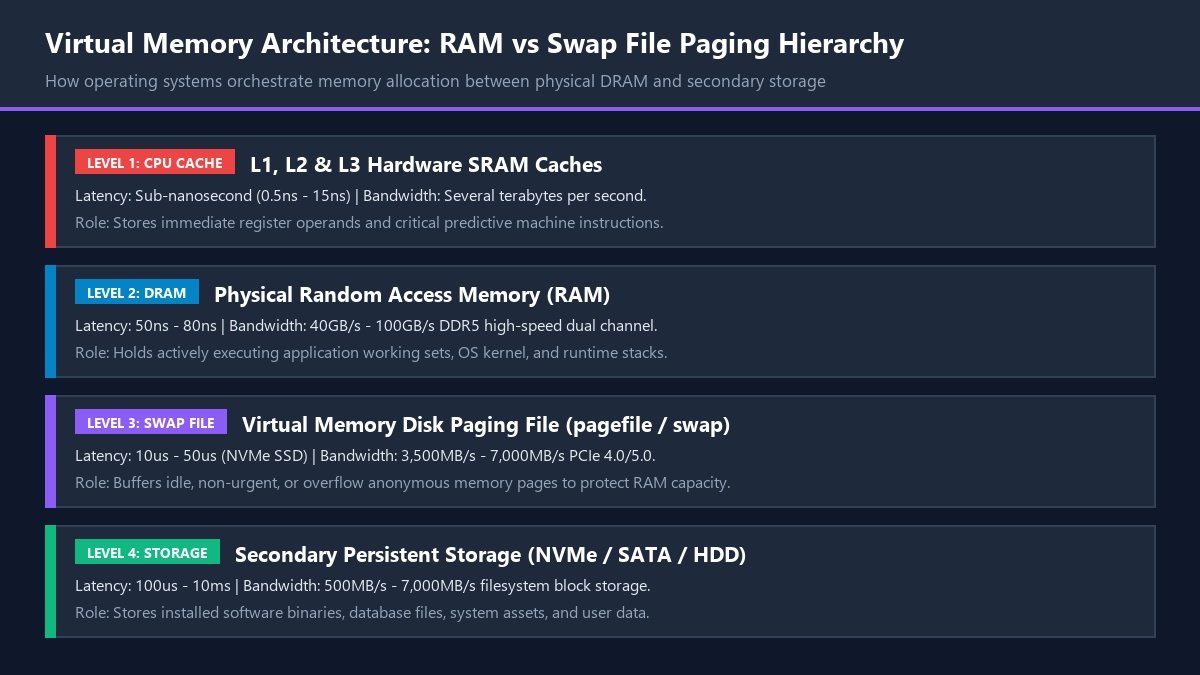
Figure 1: The computer architecture memory hierarchy spanning CPU cache, DRAM, swap file, and persistent storage.
How Virtual Memory and Paging Work Under the Hood
Modern operating systems do not grant user-space software applications direct physical access to hardware RAM modules. Instead, the kernel and the CPU’s hardware Memory Management Unit (MMU) construct an abstract illusion known as virtual memory.
Every process running in the operating system receives its own contiguous virtual address space. The operating system decomposes both virtual memory and physical memory into fixed-size blocks called pages (typically four kilobytes in size on x86-64 architectures, or sixteen kilobytes on ARM64 architectures such as Apple Silicon).
The Page Table and Address Translation
The kernel maintains data structures called page tables that map virtual pages to physical RAM frames. When a thread executes an instruction referencing a memory address:
- The hardware MMU intercepts the virtual address and consults the page table.
- If the page table indicates the requested page is actively present in physical RAM, the hardware translates the virtual address to a physical RAM address, and execution proceeds instantly.
- If the page table indicates the page is not currently resident in physical RAM (having been paged out to disk or not yet loaded), the hardware CPU raises an internal hardware interrupt known as a page fault.
Handling Page Faults and Demand Paging
When a page fault interrupt fires, CPU execution pauses for the requesting process, and the kernel’s virtual memory subsystem takes control:
- Soft Page Fault (Minor Fault): The requested memory page is actually already in physical RAM (for example, shared with another process or sitting in the system file cache), but was not yet mapped to this specific process’s page table. The kernel updates the mapping, and execution resumes with virtually zero latency.
- Hard Page Fault (Major Fault): The page is genuinely absent from physical memory because it was previously written out to the swap file. The kernel must suspend the thread, initiate an asynchronous disk read to fetch the 4KB block from the swap file, allocate an open frame in physical RAM, load the data, update the page table, and signal the CPU to resume thread execution.
Swap File vs. Pagefile vs. Swap Partition: Cross-Platform Architecture
While the theoretical concept of virtual memory is universal across computing, different operating systems implement disk-backed paging through distinct architectural mechanisms.
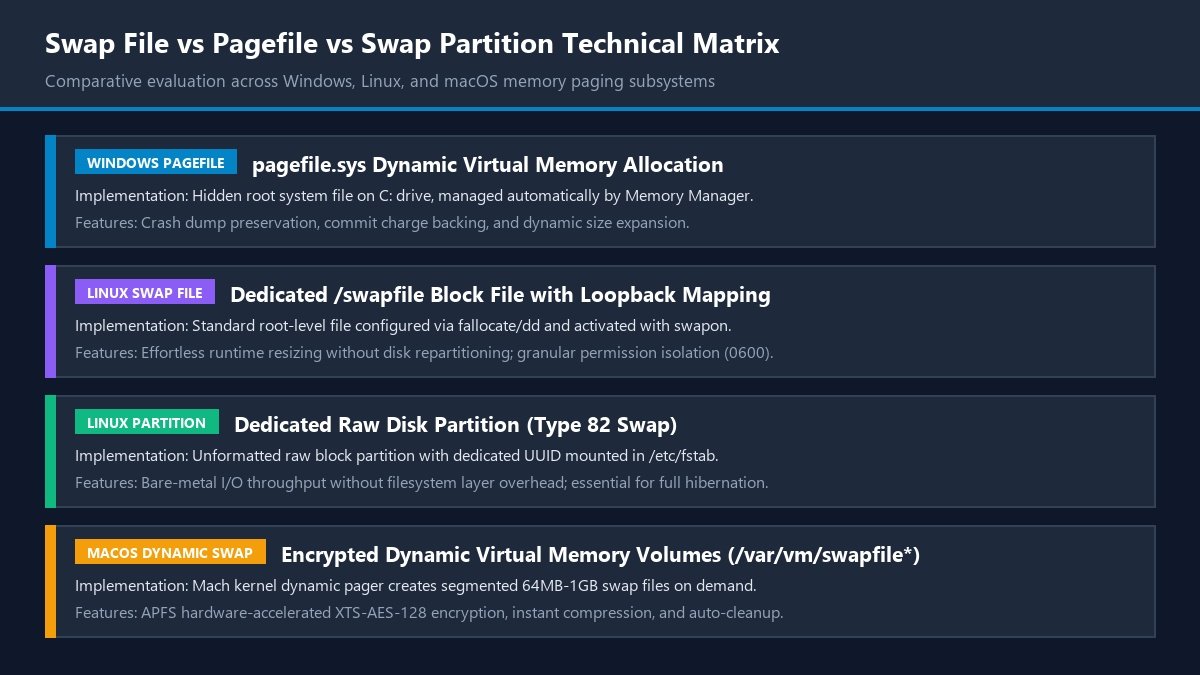
Figure 2: Technical comparison of Windows pagefile.sys, Linux swap files, swap partitions, and macOS dynamic swap.
| Operating System | Primary Implementation | Storage File / Location | Resizing Flexibility | Key Technical Distinction |
|---|---|---|---|---|
| Microsoft Windows | Dynamic System Paging File | C:\pagefile.sys | Dynamic auto-growth or static manual bounds | Required for writing complete memory crash dumps (BSOD diagnostics) and commit charges. |
| Linux (File-based) | Dedicated Loopback Swap File | /swapfile | Instant online creation and resizing | No disk re-partitioning required; mounted via /etc/fstab with strict 0600 file permissions. |
| Linux (Partition-based) | Dedicated Raw Block Partition | /dev/nvme0n1p2 (Type 82) | Rigid; requires partition table editing | Bypasses filesystem layer entirely for minimal disk overhead; standard for system hibernation. |
| Apple macOS | Dynamic Segmented Virtual Memory | /var/vm/swapfile* | Fully autonomous kernel expansion/cleanup | Encrypted via hardware AES on APFS; works hand-in-hand with hardware-accelerated memory compression. |
The Paging Lifecycle and Least Recently Used (LRU) Eviction
The kernel does not wait until physical RAM hits 100% capacity before writing pages to swap. Proactive memory management is essential for keeping responsive buffers available for incoming I/O operations and disk caching.
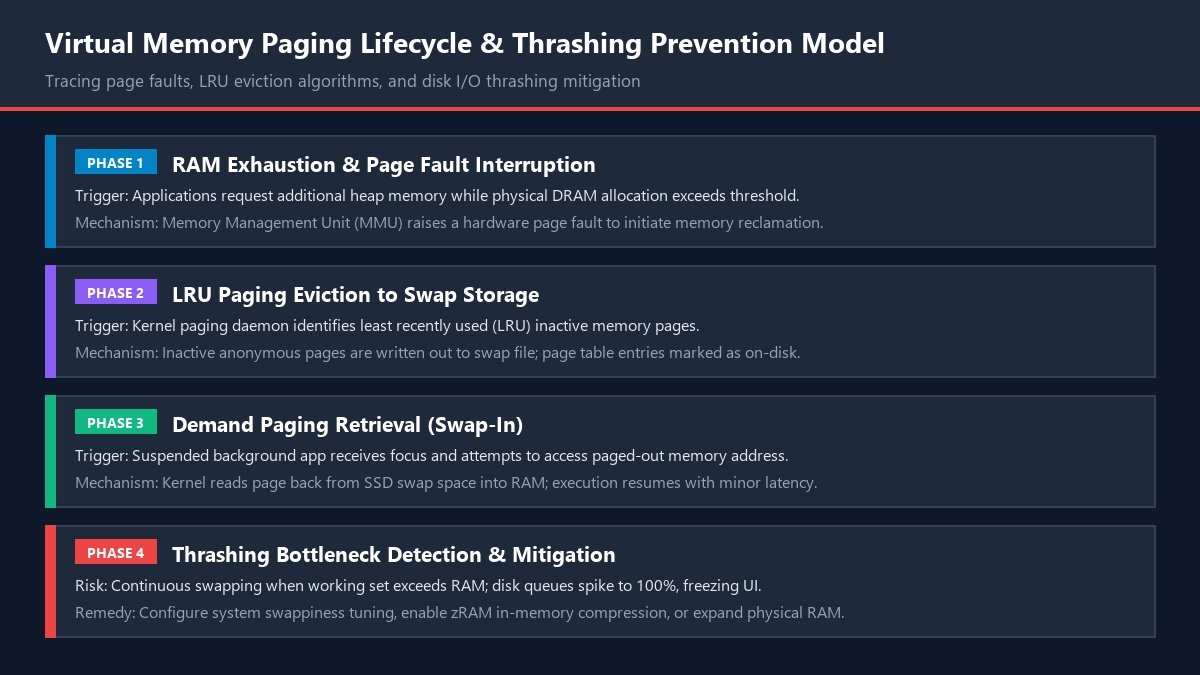
Figure 3: The lifecycle of memory pages from physical DRAM through LRU eviction, swap storage, and page reclamation.
1. Identifying Inactive Anonymous Memory
Memory pages fall into two primary classifications:
- File-Backed Pages: Memory pages that mirror executable binaries, libraries, or data files residing on disk. If the system needs RAM, file-backed pages can simply be dropped from memory without writing to swap, because they can be re-read directly from the original program binary if needed again.
- Anonymous Memory: Dynamic runtime data created on the heap or stack by executing programs (such as user session data, database variables, or browser tab state). Because anonymous memory does not correspond to an existing file on disk, it cannot simply be discarded. To free the DRAM frame it occupies, the kernel must write its contents into the swap file.
2. The LRU Eviction Daemon
In Linux, a kernel background thread called kswapd continuously monitors free memory watermarks. As active RAM consumption crosses high-water thresholds, kswapd scans memory pages using a Least Recently Used (LRU) algorithm.
Pages that have not been read or written to for an extended duration (such as a background spreadsheet left open overnight) are flagged as inactive. The daemon copies these inactive anonymous pages to the swap file on disk, updates the page table entries to point to the disk sector, and marks the physical DRAM frames as free for foreground tasks.
3. Understanding and Mitigating Memory Thrashing
While swapping idle pages to disk is healthy and beneficial, a pathological condition called memory thrashing occurs when active working sets exceed physical RAM.
If multiple actively running programs collectively require more physical memory than the system possesses, the kernel enters an endless loop: it pages out process A’s data to swap to run process B, then immediately suffers major page faults when process A attempts to execute, forcing it to page out process B’s data to bring process A back in.
Because secondary storage access latency is hundreds of times slower than physical DRAM, the storage drive’s queue depth hits 100%, CPU utilization collapses into I/O wait state (iowait), and the entire operating system freezes. When thrashing occurs, the only remedies are terminating memory-hungry processes, tuning kernel swapping aggressiveness, or upgrading physical hardware DRAM.
Step-by-Step Linux Swap File Configuration Workflow
Configuring a dedicated swap file on Linux servers or desktop installations is a fundamental system administration skill. Modern distributions prefer swap files over dedicated swap partitions because files can be created, resized, or removed instantly without dangerous partition resizing.
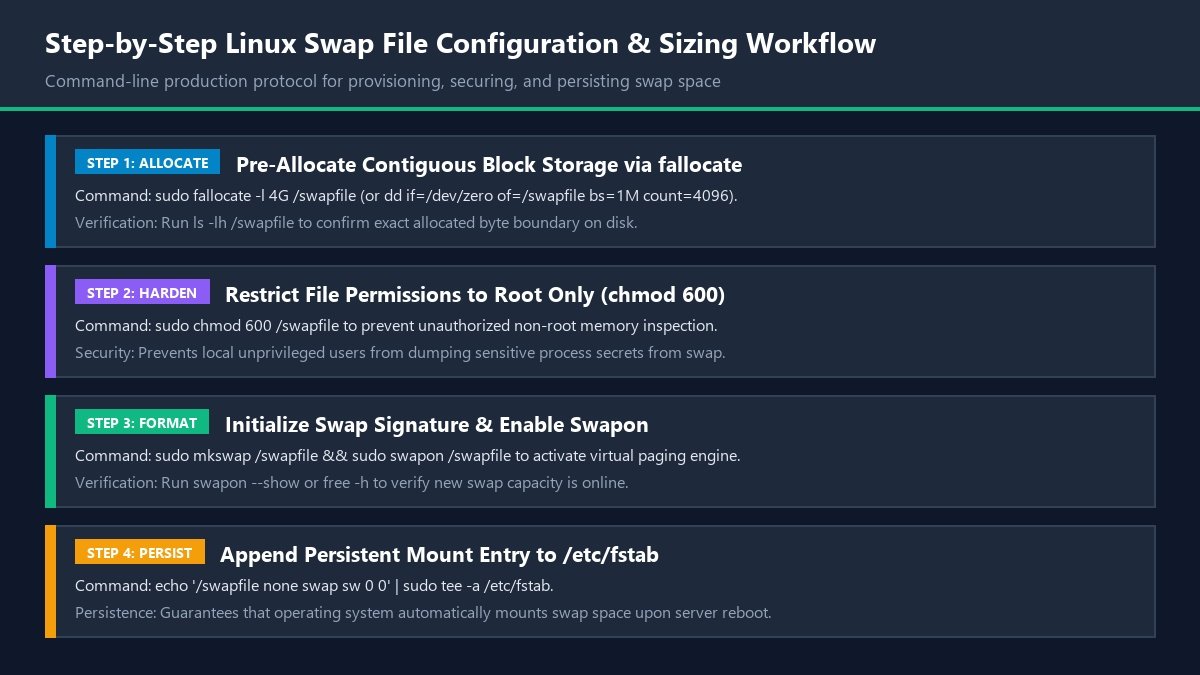
Figure 4: Complete command-line workflow for allocating, securing, initializing, and persisting a Linux swap file.
Step 1: Check Existing Swap Configuration
Before creating a new swap file, verify if your system already has active swap space:
sudo swapon --show
free -h
If the output displays zero bytes of swap, your system is operating without a virtual memory buffer.
Step 2: Allocate File Space with fallocate
To allocate a contiguous 4GB block file on your root filesystem:
sudo fallocate -l 4G /swapfile
Note on Filesystems: If your system runs on Btrfs or an older ext3 filesystem where fallocate is unsupported, use the deterministic dd utility instead:
sudo dd if=/dev/zero of=/swapfile bs=1M count=4096 status=progress
Step 3: Secure File Permissions (Crucial Security Step)
Because the swap file contains raw dumps of physical memory – including unencrypted passwords, API keys, private cryptographic tokens, and user credentials – it must never be readable by standard unprivileged users. Restrict permissions strictly to root:
sudo chmod 600 /swapfile
ls -lh /swapfile
The output must show -rw------- 1 root root.
Step 4: Initialize the Swap Signature
Format the pre-allocated block file as Linux swap space:
sudo mkswap /swapfile
The system will return a confirmation message indicating the swap size and a unique filesystem UUID.
Step 5: Activate the Swap File
Enable the swap file in the Linux kernel:
sudo swapon /swapfile
Verify activation by running swapon --show. You will see /swapfile listed with its active capacity and priority.
Step 6: Make the Swap File Permanent Across Reboots
Without updating the filesystem table, the kernel will forget the swap configuration upon reboot. Append an entry to /etc/fstab:
echo '/swapfile none swap sw 0 0' | sudo tee -a /etc/fstab
Kernel Swappiness and Cache Pressure Optimization
Creating a swap file is only half the battle; tuning how aggressively the operating system uses that swap space dictates overall system responsiveness.
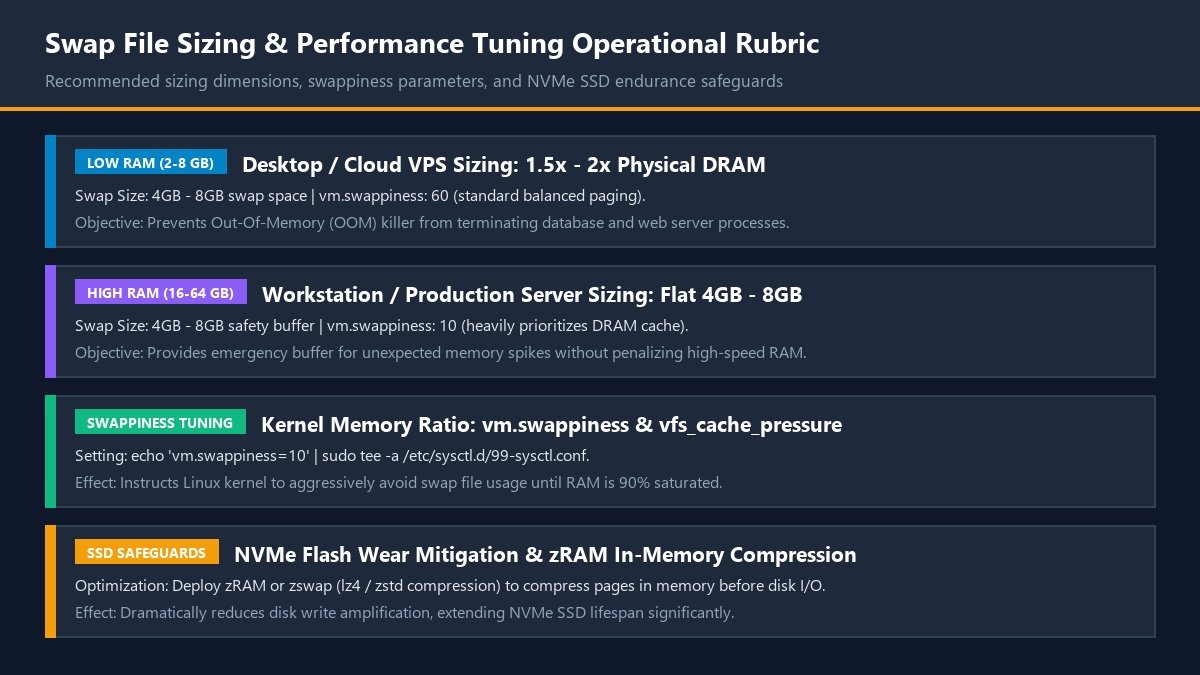
Figure 5: Operational rubric for swap sizing, kernel swappiness tuning, and NVMe SSD endurance optimization.
The vm.swappiness Parameter
The Linux kernel provides a sysctl configuration parameter called vm.swappiness, ranging from 0 to 100 (or 0 to 200 on newer kernels). This value does not represent a direct percentage of RAM usage; rather, it defines the mathematical ratio between reclaiming file-backed page cache and paging out anonymous application memory:
- vm.swappiness = 60 (Default): Standard balanced setting designed for desktop general-purpose usage.
- vm.swappiness = 10 (Recommended for Servers & Workstations): Instructs the kernel to strongly prioritize keeping anonymous application data in physical DRAM, only swapping to disk when physical memory is nearly exhausted.
- vm.swappiness = 1 (Minimal Swapping): Instructs the kernel to avoid swapping at all costs, reserving swap space strictly as an emergency buffer to avoid Out-Of-Memory (OOM) killer terminations.
- vm.swappiness = 0: Disables swapping of anonymous memory except under absolute physical memory starvation.
To temporarily adjust swappiness:
sudo sysctl vm.swappiness=10
To make this adjustment permanent across reboots, edit or create /etc/sysctl.d/99-swappiness.conf:
echo 'vm.swappiness=10' | sudo tee /etc/sysctl.d/99-swappiness.conf
echo 'vm.vfs_cache_pressure=50' | sudo tee -a /etc/sysctl.d/99-swappiness.conf
sudo sysctl --system
Windows pagefile.sys Deep-Dive: Sizing and Troubleshooting
In the Microsoft Windows operating system, virtual memory is governed by pagefile.sys, a hidden system file residing in the root of the primary system drive (usually C:\pagefile.sys).
Why Disabling pagefile.sys in Windows Is a Mistake
A persistent myth in PC enthusiast forums suggests that users with ample physical RAM (such as 32GB or 64GB) should disable the Windows pagefile entirely to improve gaming performance or reduce SSD wear. This recommendation is fundamentally flawed for several reasons:
- Commit Charge Backing: Windows uses the pagefile to satisfy commit charges. When an application launches, it reserves virtual memory space that it may not immediately use. Without a pagefile, Windows must back every single virtual memory commit reservation with physical DRAM, causing out-of-memory errors long before physical RAM is full.
- Kernel Crash Dump Preservation: When a catastrophic system crash occurs (Blue Screen of Death – BSOD), the Windows kernel cannot write crash telemetry directly to regular disk files because the filesystem stack may be compromised. Instead, the crash dump is written directly into
pagefile.sysduring the panic. Without a pagefile of sufficient size, Windows cannot generate memory dumps (minidump or MEMORY.DMP) required for troubleshooting hardware or driver failures. - Memory Efficiency: Operating systems use available physical RAM to cache frequently accessed disk files. Having a pagefile allows Windows to offload stagnant, unread background pages, freeing high-speed DRAM to serve as active disk cache, which accelerates overall system responsiveness.
Recommended Windows Pagefile Sizing Strategy
For 95% of users, leaving Windows on “Automatically manage paging file size for all drives” provides optimal balance. However, for specialized audio production workstations or high-throughput developer rigs where disk fragmentation is a concern:
- Open View advanced system settings in the Windows Control Panel or Search.
- Under the Advanced tab, click Settings in the Performance section.
- Select the Advanced tab and click Change… under Virtual memory.
- Uncheck “Automatically manage paging file size”.
- Select Custom size and set both Initial size and Maximum size to the exact same value (e.g., 8192 MB). Setting identical initial and maximum sizes creates a static pagefile, preventing continuous file expansion and disk fragmentation.
- Click Set, then OK, and reboot your computer.
Modern NVMe SSD Longevity and In-Memory Compression (zRAM / zswap)
A frequent concern among hardware enthusiasts is whether active swapping damages solid-state drive longevity through flash write endurance degradation (Terabytes Written – TBW).
The Real Impact on Modern SSD Wear
Modern consumer and enterprise NVMe SSDs utilize advanced wear-leveling algorithms, over-provisioned spare blocks, and robust 3D NAND flash. A typical 1TB NVMe drive carries an endurance rating of 600 to 1,200 TBW. Normal desktop swapping typically writes between two and five gigabytes of page data daily. At that rate, wearing out an SSD through swap writes alone would require several decades of continuous operation.
zRAM and zswap: The Zero-Disk Compression Revolution
To virtually eliminate disk write overhead while boosting memory capacity, modern Linux distributions (such as Fedora and ChromeOS) and Android devices deploy in-memory compression:
- zRAM: Creates a compressed block device in physical RAM. When memory is paged out, instead of writing data to a slow physical disk, the kernel compresses the page using lightning-fast algorithms (such as LZ4 or Zstandard) and stores it in RAM. A typical 2:1 or 3:1 compression ratio effectively doubles available memory capacity with near-zero latency.
- zswap: Operates as a write-through compression cache sitting in front of your physical swap file. When a page is flagged for eviction, zswap attempts to compress it and store it in an in-memory cache pool. Only if the compressed cache pool becomes full does the page get written out to the physical SSD swapfile.
Swap Space Sizing Matrix: Comprehensive Recommendations
| Physical DRAM Installed | Standard Swap Size (No Hibernation) | Swap Size with Hibernation Support | Recommended vm.swappiness Setting |
|---|---|---|---|
| 2 GB – 4 GB | 4 GB – 8 GB (2x RAM) | 6 GB – 8 GB (1.5x – 2x RAM) | 60 (balanced paging prevents OOM crash) |
| 8 GB – 16 GB | 4 GB – 8 GB | 12 GB – 20 GB (1.25x RAM) | 10 – 20 (prioritizes DRAM responsiveness) |
| 32 GB – 64 GB | 8 GB – 16 GB (Flat buffer) | 36 GB – 70 GB (1.1x RAM) | 1 – 10 (emergency buffer only) |
| 128 GB+ (Enterprise Server) | 16 GB – 32 GB (Safety margin) | Not Recommended for Hibernation | 1 (strictly prevents swapping database pages) |
Frequently Asked Questions About Swap Files
Can a swap file replace physical RAM?
No. While a swap file provides virtual memory addresses, secondary storage access speeds are thousands of times slower than physical DRAM. A swap file acts as an emergency safety net and an idle buffer, not a substitute for adequate physical hardware memory.
Is a swap file better than a swap partition in Linux?
On modern Linux kernels (version 2.6 and above), swap files deliver virtually identical performance to dedicated swap partitions because the kernel bypasses filesystem caching and maps the swap file’s disk blocks directly. Swap files offer superior flexibility because you can resize or remove them anytime without modifying disk partition tables.
What happens if my system runs out of both RAM and swap space?
When both physical memory and swap storage are completely exhausted, the operating system triggers emergency memory reclamation. In Linux, the Out-Of-Memory (OOM) killer algorithm evaluates running processes and forcefully terminates the highest memory-consuming application to prevent a full system freeze. In Windows, you will receive an “Out of Virtual Memory” error dialog, and programs will begin crashing spontaneously.
Does having a swap file slow down my computer?
A properly configured swap file actually speeds up your computer. By moving inactive background memory pages to disk, the operating system frees up high-speed physical DRAM to serve as active filesystem cache. Your system only slows down if physical RAM is severely undersized and the system begins thrashing.
How do I safely remove a swap file in Linux?
To safely remove a swap file, first deactivate it by running sudo swapoff /swapfile. Then delete the physical file using sudo rm /swapfile. Finally, edit /etc/fstab to remove the corresponding mounting entry so the system does not attempt to mount it on reboot.
Enterprise Database and High-Performance Computing Considerations
In enterprise database environments – such as production PostgreSQL clusters, MySQL instances, Oracle Database appliances, or Redis in-memory caches – swap memory behavior requires meticulous architectural planning. Unlike typical web applications that tolerate slight latency spikes, databases rely on predictable memory access times to maintain strict query latency SLAs.
When an enterprise database engine manages a large buffer pool (such as PostgreSQL’s shared_buffers or MySQL InnoDB’s innodb_buffer_pool_size), the database software itself maintains sophisticated internal caching algorithms. If the underlying operating system kernel decides to page out portions of this active buffer pool to a swap file, query execution latencies can surge from three milliseconds to five thousand milliseconds instantaneously.
For high-performance database hosts, database administrators commonly enforce strict memory parameters:
- Locking Memory with mlockall(): Enterprise software can execute the
mlock()ormlockall()system call to instruct the kernel that specific shared memory blocks must remain permanently pinned in physical DRAM, entirely immune from paging. - Configuring Linux HugePages: Standard 4KB memory pages create enormous page table overhead on database servers equipped with 512GB or 1TB of RAM. Implementing Transparent HugePages (THP) or static HugePages (configured in 2MB or 1GB page sizes) prevents the kernel from swapping database cache while drastically reducing TLB (Translation Lookaside Buffer) hardware cache misses.
- Aggressive Swappiness Suppression: Setting
vm.swappiness=1on database hosts ensures that the kernel will only utilize swap as an emergency safety valve to avoid catastrophic process termination.
Historical Context: The Genesis of Paging in 1962
The concept of virtual memory and disk paging was not invented during the personal computer era; it traces its origins to the Atlas computer, developed by the University of Manchester, Ferranti Ltd., and Plessey in 1962. At that time, high-speed magnetic core memory was extraordinarily expensive, while slower magnetic drum memory was plentiful.
The Manchester engineers devised an automated hardware-software mechanism that divided memory into 512-word pages, swapping pages between core memory and drum storage transparently. This groundbreaking invention decoupled application programming from physical hardware limitations, establishing the architectural paradigm that powers every smartphone, workstation, and hyperscale cloud datacenter in existence today.
Summary of Practical Recommendations
Whether configuring an inexpensive cloud VPS, building an enthusiast gaming rig, or administering enterprise Kubernetes nodes, virtual memory configuration remains a cornerstone of system stability:
- Never run an operating system completely without swap space; even a modest 2GB or 4GB swap file prevents out-of-memory kernel panics and preserves diagnostic crash dumps.
- Use swap files rather than raw swap partitions for operational flexibility and ease of maintenance.
- Always restrict swap file permissions to root only (
chmod 600) to prevent credential leaks. - Tune
vm.swappinessto 10 or 20 on high-RAM workstations and servers to prioritize physical DRAM responsiveness while preserving an emergency buffer. - Embrace modern in-memory compression (zRAM / zswap) where available to reduce physical storage writes and effectively expand memory capacity.
Kernel Paging Algorithms: Clock Algorithm and Active vs Inactive Lists
To truly master virtual memory management, one must examine the specific algorithmic mechanics operating inside the Linux kernel’s memory management subsystem. Managing millions of four-kilobyte pages cannot be accomplished through brute-force searching; it demands computationally efficient, constant-time data structures.
The Linux kernel organizes physical memory pages into two primary linked lists per memory zone:
- The Active List: Contains memory pages that have been accessed recently by running processes. The kernel avoids touching these pages during initial eviction scans to prevent performance degradation of active tasks.
- The Inactive List: Contains candidate pages that have not experienced recent read or write references. When the system requires free RAM frames, memory management threads scan this inactive list first.
To manage the transition between these two lists, the kernel employs a variation of the Clock Algorithm (also known as the Second-Chance Page Replacement Algorithm). When a page resides on the active list, the MMU sets an access bit in the page table entry whenever the page is touched by CPU execution units.
Periodically, the kswapd memory scanning daemon sweeps through the active list. If a page’s access bit is set to zero (indicating it was not touched during the scanning interval), the page is demoted to the inactive list. If the page remains untouched on the inactive list during the subsequent sweep, it is prioritized for eviction: file-backed pages are dropped, and anonymous pages are written out to the swap file.
macOS Dynamic Memory Management: Unified Memory and Compressed Swap
Apple’s macOS approaches virtual memory and swapping through a distinct architectural philosophy, particularly on modern Apple Silicon Macs (M1, M2, M3, M4) featuring Unified Memory Architecture (UMA).
In Apple Silicon, physical DRAM is shared directly between the CPU, GPU, and Neural Engine on a single high-bandwidth memory bus. Because unified memory lacks distinct dedicated VRAM for graphics, the operating system must manage memory pressure with extraordinary agility.
The Four-Tier macOS Memory Lifecycle
When memory demands increase in macOS, the Mach kernel executes a four-tiered escalation workflow:
- Tier 1 – Active Memory: High-priority application working sets reside in physical DRAM at native access speeds.
- Tier 2 – In-Memory Hardware Compression: When free RAM drops below target thresholds, the operating system compresses inactive memory pages using hardware-accelerated algorithms. Pages are compressed down to a third of their original size and retained in RAM, avoiding disk I/O entirely.
- Tier 3 – Dynamic Encrypted Swap Files: If memory pressure remains elevated despite compression, the dynamic pager daemon creates segmented swap files in
/var/vm/swapfile0,swapfile1, etc. Each swap file is encrypted with a unique, volatile hardware-generated XTS-AES-128 key, ensuring that sensitive data written to flash storage cannot be recovered if the machine is powered off. - Tier 4 – Autonomous Cleanup: Unlike Windows, which maintains a large static pagefile, macOS dynamically unlinks and deletes individual swap files the moment memory pressure subsides, instantly reclaiming flash storage space.
Enterprise Incident Case Studies: Debugging Real-World Memory Catastrophes
In high-stakes enterprise infrastructure, misconfigured swap behavior can turn minor application memory leaks into catastrophic service outages. Below is an analytical review of real-world production incident triages.
Case Study 1: The Cascading Kubernetes Node Lockup
An enterprise e-commerce platform experienced sudden node unresponsiveness across a production Kubernetes cluster during a major promotional sale. While CPU utilization appeared modest, pod health checks timed out, and the cluster autoscaler failed to provision new pods.
Investigation revealed that nodes had been provisioned with default cloud Linux images containing an active 4GB swap file and vm.swappiness=60. A microservice handling payment webhooks suffered a minor memory leak. As the container consumed memory, the Linux kernel began paging out surrounding system daemons – including the Kubernetes kubelet and Docker container runtime – to the SSD swap file.
Because the swap file was hosted on shared cloud block storage with limited IOPS, the storage volume quickly saturated. The kubelet became unresponsive while waiting for paged-out memory, causing the Kubernetes control plane to declare the node dead. The control plane rescheduled hundreds of pods onto adjacent nodes, instantly triggering identical thrashing cascades across the entire cluster.
Remediation: Kubernetes officially mandates disabling swap on production worker nodes (swapoff -a) or utilizing specialized container-aware swap configurations. This ensures that memory-leaking containers are immediately terminated by the Out-Of-Memory killer rather than degrading the host node’s core orchestration daemons.
Case Study 2: The Latency Spike on an Enterprise Database Cluster
A financial services firm noticed intermittent query latency spikes on a primary PostgreSQL database server, with standard read queries jumping from 2ms to over 4,000ms.
Using vmstat 1 and sar -B, database administrators discovered high rates of page-outs (so) and page-ins (si). The Linux kernel had decided to page out several hundred megabytes of PostgreSQL’s shared_buffers to make room for temporary operating system file cache buffers created by a daily backup script.
Remediation: The engineering team tuned vm.swappiness to 1, configured vfs_cache_pressure to 50, and allocated database memory using static Linux HugePages. These changes permanently prevented the operating system from swapping active database buffer pools, eliminating latency spikes completely.
Swap on Network Storage and SANs: Cloud and NFS Hazards
In modern cloud infrastructure (such as AWS, Google Cloud, and Microsoft Azure) and enterprise on-premises datacenters, virtual machine root disks are frequently backed by network-attached block storage (e.g., AWS EBS or Ceph SANs) rather than local physically attached NVMe drives.
Hosting an active swap file over a network storage fabric introduces profound operational hazards:
- Latency Amplification: Physical NVMe SSDs provide random 4KB read latencies around 10 to 30 microseconds. Network-attached storage volumes, by contrast, traverse virtualized network switches and storage controllers, yielding latencies ranging from 1 to 5 milliseconds (100 times slower). Under high memory pressure, paging over network storage causes catastrophic system stalls.
- IOPS Budget Depletion: Cloud block storage volumes enforce strict IOPS (Input/Output Operations Per Second) quotas. When an application leaks memory and the kernel begins rapid swapping, the burst of swap writes quickly exhausts the volume’s IOPS burst credit balance. Once throttled, all disk I/O on the root filesystem collapses, bringing web servers, background daemons, and SSH access to a complete halt.
- Architectural Solution: If cloud servers require swap space, configure the swap file on temporary local instance storage (ephemeral NVMe scratch disks) rather than persistent networked block volumes. Because swap data does not need to survive an intentional server termination, ephemeral local SSDs provide bare-metal IOPS and nanosecond responsiveness without consuming expensive networked storage credits.
Benchmarking Virtual Memory: Tools and Performance Profiling
Systems administrators and site reliability engineers (SREs) must actively monitor memory subsystems to detect impending memory pressure before thrashing degrades user-facing services.
| Command-Line Utility | Key Monitored Metrics | Diagnostic Purpose | Alert Threshold Criteria |
|---|---|---|---|
| vmstat 1 | si (swap-in), so (swap-out), wa (iowait) | Real-time second-by-second paging activity | Sustained so > 0 paired with wa > 15% indicates severe paging bottleneck. |
| sar -B 1 | pgpgin/s, pgpgout/s, fault/s, majflt/s | Detailed kernel page fault frequency statistics | Spikes in majflt/s (major faults) confirm disk-swapping latency delays. |
| free -m | total, used, free, buff/cache, available | High-level memory consumption summary | Available memory dropping below 10% of total physical RAM. |
| dmesg -T | grep -i oom | Out of memory: Kill process [PID] | Kernel log inspection for OOM killer invocations | Any invocation indicates total exhaustion of RAM and swap buffers. |
By incorporating these diagnostic checks into automated Prometheus alerts or Datadog dashboards, infrastructure teams can automatically scale compute capacity or recycle misbehaving application containers before swap contention impacts production users.
Swap Memory in Embedded Linux and Single-Board Computers (Raspberry Pi & IoT)
Virtual memory architecture presents unique challenges on embedded single-board computers (such as Raspberry Pi 4/5, NVIDIA Jetson, or industrial BeagleBone gateways). These low-cost embedded systems typically boot from consumer-grade MicroSD cards or raw eMMC flash modules.
Unlike enterprise NVMe solid-state drives that feature multi-gigabyte DRAM caches and sophisticated wear-leveling controllers, MicroSD cards utilize inexpensive flash memory architectures with limited write cycle endurance. Configuring a traditional swap file directly on a MicroSD card can physically destroy the flash card within several months of active continuous deployment.
To run memory-constrained embedded Linux systems reliably without destroying flash storage, embedded engineers deploy specialized virtual memory architectures:
- Universal zRAM Deployment: Modern Raspberry Pi OS distributions deploy zRAM by default. By compressing inactive pages into an in-memory block device using LZ4 compression, a 2GB or 4GB Raspberry Pi can run modern web browsers or compile software packages without touching persistent storage.
- Read-Only Root Filesystems with OverlayFS: For industrial IoT field devices, the primary filesystem is mounted read-only (
ro) to prevent filesystem corruption during sudden power losses. Dynamic temporary files and swap spaces are mapped to RAM-backedtmpfsoverlays. - External USB NVMe Storage: If an embedded workload strictly requires substantial disk-backed swap (such as training edge AI computer vision models on an NVIDIA Jetson), the swap file must be provisioned on a dedicated USB 3.0 or M.2 NVMe SSD enclosure rather than the internal boot SD card.
Interactive Terminal Monitoring: Visualizing Memory with btop and htop
While standard tools like free and vmstat provide quick snapshots of system state, interactive terminal monitoring suites provide intuitive graphical feedback regarding memory usage, swap saturation, and process-level memory allocations.
Two indispensable utilities for systems administrators include:
- htop: An enhanced interactive process viewer. In
htop, the top header bar renders color-coded meters for both physical RAM and swap capacity. Green indicators represent normal memory consumption, while purple bars illustrate active cache buffers. If the swap meter begins turning red and climbing toward fifty percent, it indicates immediate memory pressure requiring triage. Pressing F6 allows administrators to sort the active process table byPERCENT_MEMorM_RESIDENT, instantly pinpointing which daemon is consuming physical frames. In addition, pressing Shift + P organizes memory utilization by process tree hierarchy, allowing DevOps teams to trace parent worker thread allocations across multithreaded application servers and database connection pools. - btop: A modern, GPU-aware terminal resource monitor written in C++.
btopdisplays detailed historical graphs of memory pressure over sliding time horizons, showing disk I/O rates, swap read/write bandwidth, and page cache flushes simultaneously. Its visual graphs allow engineers to correlate memory spikes directly with incoming network traffic or CPU load anomalies.