Executive Summary: Mastering iPad Multitasking
Splitting your screen on an iPad transforms Apple’s tablet from a media consumption slate into a formidable productivity workstation. Modern iPadOS delivers four distinct multitasking paradigms: Split View for side-by-side app pairs, Slide Over for floating utility panels, Stage Manager for freeform desktop-style window resizing, and Picture in Picture for persistent video playback. Whether you operate an entry-level standard iPad or an M4 iPad Pro driving an external 6K display, mastering gesture flows, aspect ratios, and keyboard shortcuts unlocks desktop-class efficiency.
Understanding iPadOS Multitasking Architecture
The evolution of iPad multitasking represents a masterclass in touch-first human interface design. When Apple originally launched the iPad, applications ran exclusively in full-screen sandboxes. As silicon performance escalated with custom A-series and Apple Silicon M-series processors, the underlying Darwin Unix foundation gained the ability to manage complex concurrent application states without degrading battery endurance or thermal performance.
Modern iPadOS coordinates multiple applications using an intelligent compositing window server. Unlike traditional desktop operating systems (such as Windows or macOS) where arbitrary overlapping windows can clutter the display and consume unpredictable GPU fill-rate, iPadOS balances computational efficiency with spatial clarity. The operating system continuously prioritizes foreground user interaction while placing inactive secondary panes into high-efficiency memory states.
To navigate this ecosystem effectively, users must recognize the four core windowing models built into iPadOS: Split View, Slide Over, Stage Manager, and Picture in Picture. Each mode addresses a distinct operational requirement, ranging from deep reference research to rapid micro-task execution.
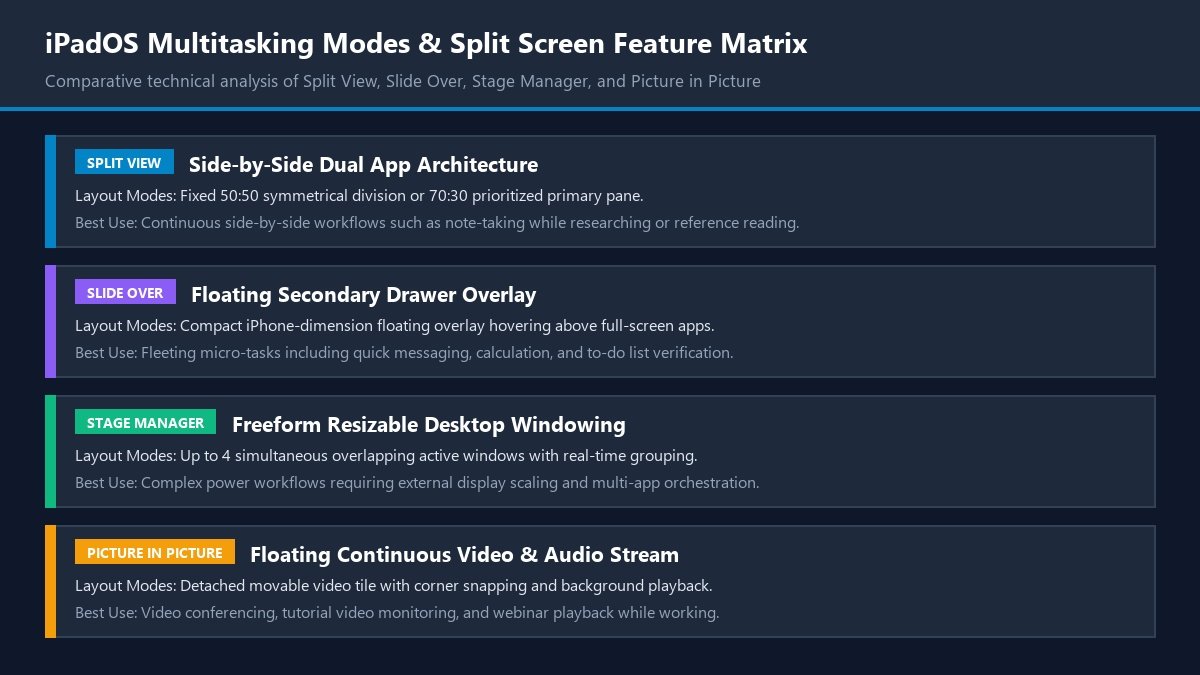
Figure 1: Comprehensive feature matrix comparing Split View, Slide Over, Stage Manager, and Picture in Picture.
The Core Multitasking Modes: Choosing the Right Tool
Selecting the optimal multitasking mode depends on your current task requirements and physical screen size. A compact 8.3-inch iPad mini demands different spatial choices than a spacious 13-inch iPad Pro.
1. Split View: Dual-App Column Workflow
Split View is the workhorse of iPad productivity. It divides the display vertically into two independent application windows. You can divide the workspace into an equal 50:50 split or an asymmetrical 70:30 ratio (or 33:67 ratio). This layout is ideal for tasks requiring continuous visual correlation: drafting an essay in Microsoft Word while reading a PDF in Safari, or referencing financial spreadsheets in Numbers while participating in a Zoom call.
2. Slide Over: Floating Secondary Utility Drawer
Slide Over allows an application to hover above your primary workspace in a tall, narrow window that mimics the proportions of an iPhone display. Slide Over rests on either the left or right edge of the screen and can be summoned or dismissed with a single edge-swipe gesture. It is designed for intermittent, low-friction interactions: calculating figures with Calculator, replying to Slack messages, checking reminders, or verifying two-factor authentication codes without abandoning your primary document.
3. Stage Manager: Freeform Desktop Windowing
Introduced for iPads powered by Apple Silicon (M1, M2, M4) and select iPad Pro hardware, Stage Manager represents a major shift toward desktop-style computing. It replaces rigid column divisions with freeform resizable overlapping windows. You can arrange up to four active windows on your iPad screen simultaneously, with an additional four windows available on an external connected monitor, providing true multi-display workflow capabilities.
4. Picture in Picture (PiP): Continuous Floating Media
Picture in Picture extracts video playback streams from compatible applications (Safari, YouTube, FaceTime, Netflix, VLC) and renders them in a floating thumbnail window. You can reposition this window into any of the four screen corners, resize it with pinch gestures, or tuck it off the side of the display while audio playback continues uninterrupted in the background.
Step-by-Step Guide: How to Split Screen on iPad Using the Three-Dot Menu
In modern iPadOS, Apple replaced ambiguous multi-finger drag gestures with a clear visual control: the Multitasking Button, represented by three subtle grey dots centered at the top of every compatible application window.
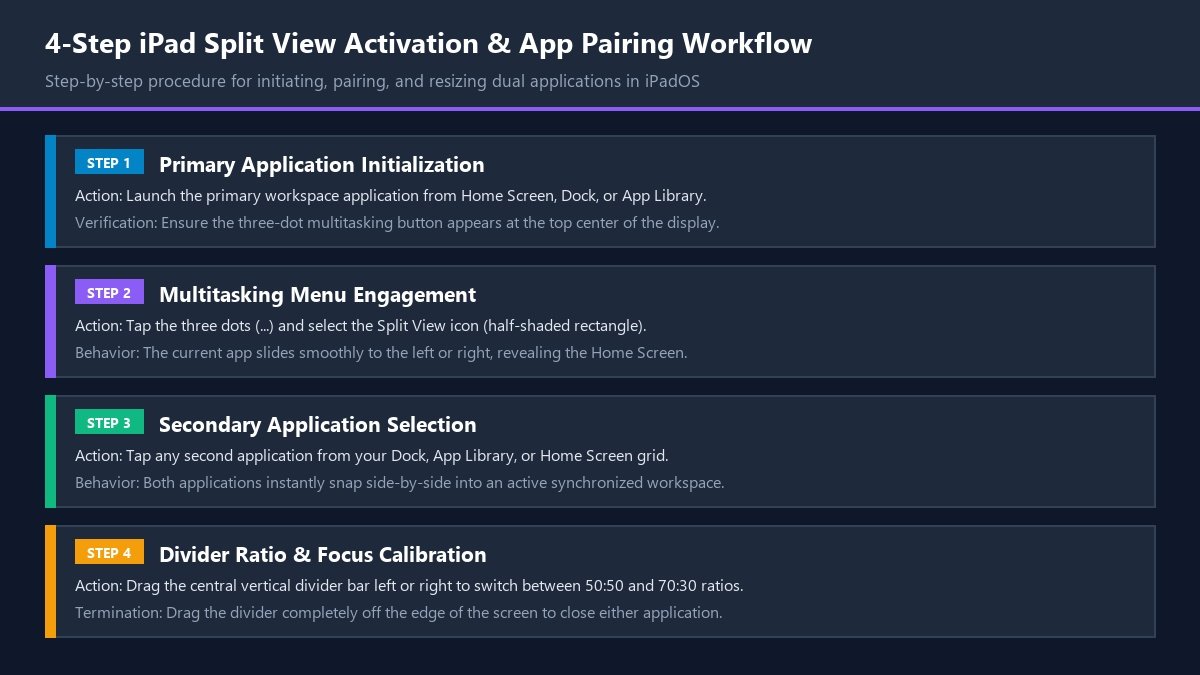
Figure 2: The step-by-step workflow for initiating, pairing, and adjusting dual applications in Split View.
Step 1: Launch Your Primary Application
Open the first application you wish to work with from your Home Screen, Dock, or App Library. For example, open Safari to browse a research paper. Look at the very top edge of your display; you will notice three small horizontal dots centered above the address bar.
Step 2: Engage the Multitasking Menu
Tap the three-dot button. A compact popover menu will appear displaying three distinct window layout icons:
- Full Screen: Represented by a solid filled rectangle.
- Split View: Represented by a rectangle divided vertically in half, with one half shaded.
- Slide Over: Represented by a tall, narrow shaded rectangle hovering over a clear background.
Tap the central Split View icon.
Step 3: Choose Your Secondary Application
The moment you tap Split View, the current application smoothly animates to one side of the screen, revealing your Home Screen, Dock, and App Library. Select your second desired application. You can:
- Tap an app icon visible on your Home Screen grid.
- Select an application pinned to your bottom Dock.
- Swipe left to access the App Library and select any installed tool.
- Swipe down to summon Spotlight Search, type the app name, and press Return.
Once selected, the second application opens immediately alongside the first, snapping into a synchronized dual-window workspace.
Step 4: Adjusting Window Proportions (50:50 vs 70:30)
Between the two application panes, you will see a vertical black divider bar featuring a small grey pill-shaped drag handle in its center. By default, iPadOS positions this divider directly in the middle, creating an equal 50:50 screen split.
To adjust the layout:
- Press and hold the central drag handle with your finger or Apple Pencil.
- Drag the handle smoothly to the left or right.
- Release your finger when the divider snaps into the 70:30 or 30:70 proportional boundary.
This asymmetrical arrangement is invaluable when one application requires wide visual real estate (such as an analytical dashboard or drawing canvas) while the companion app only requires narrow vertical space (such as a reference checklist or chat feed).
Advanced Gesture Method: Dragging from the Dock and Spotlight
While the three-dot menu provides clear visual guidance, touch-gesture power users often prefer the direct-manipulation drag method. This approach allows you to initiate split screen pairings rapidly without leaving your active application.
Initiating Split View from the Dock
- With your primary application open, swipe up gently from the bottom edge of the display just enough to summon the floating Dock (approximately one inch), then release your finger.
- Locate the icon of your second desired application in the Dock.
- Press and hold the icon for a fraction of a second until it lifts slightly, then drag it toward the extreme left or right edge of the screen.
- As your finger approaches the display perimeter, the background application will compress, creating a darkened rectangular landing zone.
- Release your finger inside this landing zone. The application will dock instantly in Split View.
Initiating Split View from Spotlight Search
If the second application you need is not pinned to your Dock:
- Swipe down with one finger on any open area, or press Command + Space on an external keyboard to summon Spotlight Search.
- Type the name of the secondary application into the search field.
- Touch and drag the application icon directly from the search results list toward the edge of your screen.
- Drop the icon into the split screen boundary zone to form an active app pair.
Swapping, Replacing, and Closing Split Screen Windows
Managing a dual-pane workspace requires knowing how to manipulate active panes without tearing down your entire desktop configuration.
How to Swap Left and Right Application Positions
If you want to move the application on the left side over to the right side:
- Locate the three-dot button at the top of the window you wish to move.
- Press and drag the three-dot button down slightly until the entire window detaches into a floating card.
- Drag the card across to the opposite side of the screen until the adjacent window shifts position.
- Release your finger to drop the window into its new home.
How to Replace One App in a Split View Pair
To swap out one of the paired applications without closing the other:
- Summon the Dock or Spotlight Search.
- Drag the new application icon directly over the top of the specific window you wish to replace.
- When the targeted window dims, release your finger. The new application will replace the old one while preserving your companion app intact.
How to Close Split Screen and Return to Full Screen
When you finish your multitasking session and wish to return to a single full-screen view:
- Method 1 (Divider Drag): Place your finger on the central divider handle and drag it completely off the left or right edge of the screen. The remaining application expands to fill the entire display.
- Method 2 (Three-Dot Menu): Tap the three-dot button at the top of the application you want to keep, and select the solid Full Screen icon. The companion app will dismiss automatically into the background.
Stage Manager: The Desktop Windowing Evolution
With the rollout of modern iPadOS updates, Apple introduced Stage Manager to bridge the gap between traditional tablet touch interfaces and full desktop computing environments. Available on iPad Pro models and Apple Silicon iPad Air hardware, Stage Manager fundamentally alters the window management model.
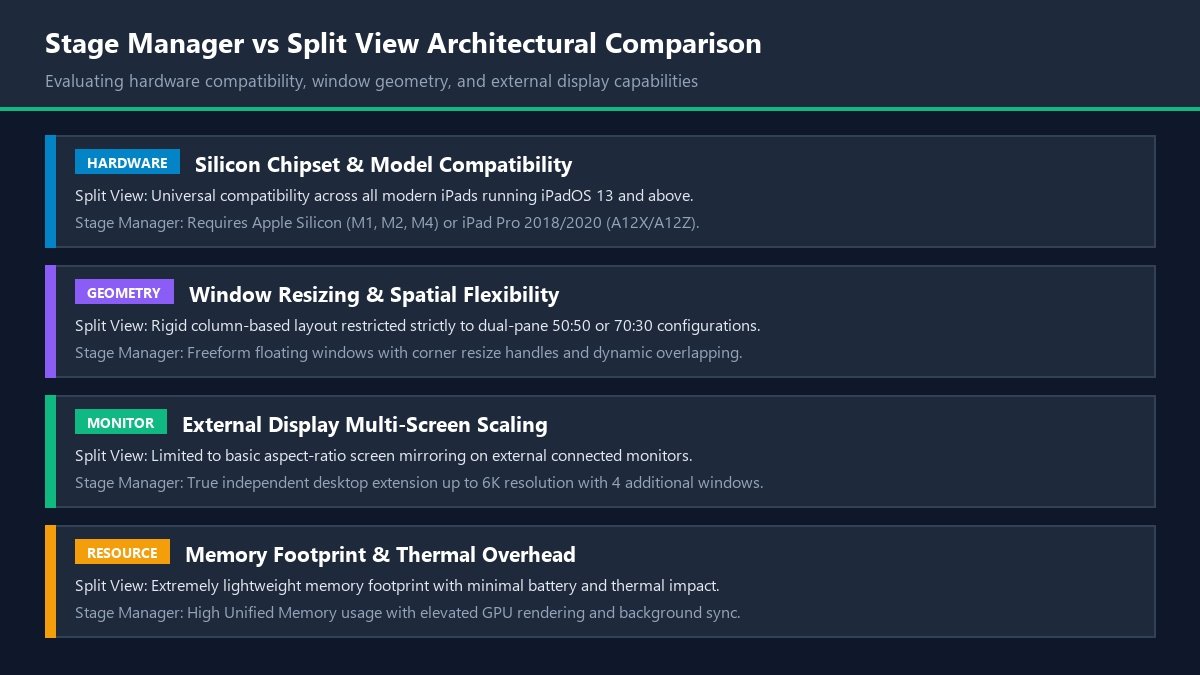
Figure 3: Detailed comparison between Stage Manager freeform windowing and traditional Split View columns.
How to Enable Stage Manager
Stage Manager is not activated by default. To turn it on:
- Swipe down from the top-right corner of your screen to open Control Center.
- Locate the Stage Manager icon (represented by three small squares next to a larger rectangle).
- Tap the icon to activate it. You can long-press the icon to toggle whether the Dock and Recent Apps strip remain permanently visible or auto-hide.
Alternatively, navigate to Settings > Multitasking & Gestures, and select Stage Manager.
Managing Overlapping Windows and App Groups
In Stage Manager, applications no longer occupy rigid half-screen columns. Instead:
- Each application launches in an independent window featuring curved corners and a subtle drop shadow.
- At the bottom-right corner of each window, you will notice a curved black resize bracket. Drag this handle to dynamically resize the window to any dimension.
- You can drag additional applications from the left-hand “Recent Apps” strip or from the Dock directly onto your active canvas. Up to four windows can co-exist simultaneously.
- iPadOS automatically groups windows that you use together into persistent workspaces. Tapping a workspace in the side strip instantly restores all grouped windows in their exact spatial positions.
Full External Display Support up to 6K Resolution
The true power of Stage Manager emerges when connecting an Apple Silicon iPad (M1 or later) to an external monitor via USB-C or Thunderbolt. Rather than merely mirroring the iPad’s 4:3 aspect ratio with black letterboxing, Stage Manager provides true desktop extension.
When connected to an external display (such as an Apple Studio Display or standard 4K/6K monitor):
- The external monitor renders an independent desktop canvas at full native resolution and 16:9 or 21:9 aspect ratios.
- You can run four independent windows on the iPad screen and four separate windows on the external monitor simultaneously, totaling eight live applications.
- Your mouse pointer (via trackpad or connected mouse) moves fluidly between the iPad and the external monitor, allowing fluid cross-display dragging of assets and windows.
Cross-Application Drag and Drop Workflow Mastery
One of the most profound advantages of running applications side-by-side in Split View is the ability to transfer rich data without relying on the clipboard or intermediate export files. iPadOS features a system-wide asynchronous drag-and-drop architecture.
Dragging Content Between Apps
To transfer content across an active Split View session:
- Images and Photos: Open the Photos app alongside an email draft in Mail. Press and hold any photo for one second until it elevates beneath your finger. Drag the image across the central divider and release it directly into your email body. It inserts instantly at full resolution.
- Text Selections: Highlight a passage of text in Safari. Press and hold the highlighted block until it lifts into a translucent draggable token. Drag the token into a Notes document or Word file to insert the quotation.
- Files and Attachments: Drag PDF documents from the Files app directly into communication tools like Slack, Teams, or Messages.
- Multi-Item Dragging: While holding an initial item with one finger, use another finger to tap additional items (such as multiple photos or document icons). They will stack beneath your primary finger, allowing you to drop a batch of ten files in a single motion.
Diagnostic and Troubleshooting Protocol: Resolving Multitasking Issues
While iPadOS multitasking is generally robust, users occasionally encounter unresponsive windows, missing controls, or unexpected app crashes. Follow this structured diagnostic protocol to identify and resolve common issues.
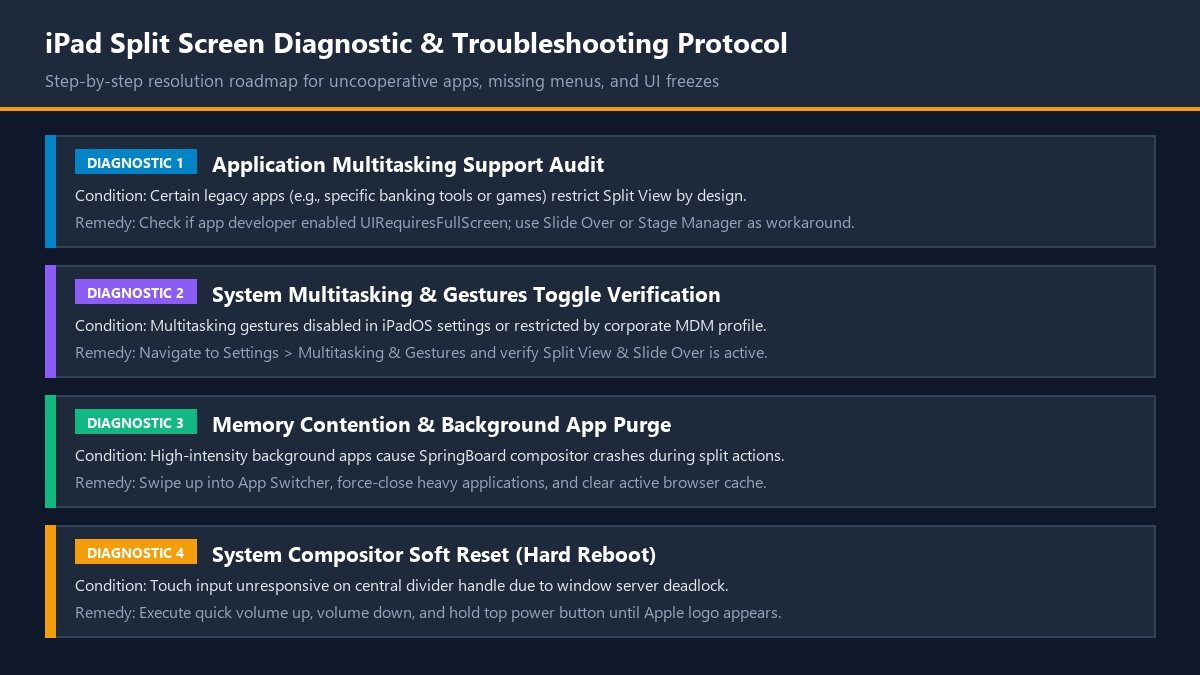
Figure 4: Diagnostic resolution protocol for addressing uncooperative apps, missing controls, and UI freezes.
Issue 1: The Three-Dot Menu Does Not Appear
If an application displays no three-dot multitasking button at the top of the screen:
- Application Compatibility Restriction: Some developers explicitly disable multitasking by configuring the
UIRequiresFullScreenkey in their application manifest. This is common in graphic-intensive games, specialized camera capture utilities, or legacy banking applications. If an app developer has restricted full-screen mode, the system cannot force Split View. - System Settings Disabled: Check if multitasking features were inadvertently turned off. Open Settings > Multitasking & Gestures. Ensure that either Split View & Slide Over or Stage Manager is actively checked.
Issue 2: The Central Divider Is Frozen and Will Not Drag
If touching the divider handle produces no response:
- Check for touch digitizer interference from screen protectors or dirt along the screen perimeter.
- A background process may have exhausted available RAM, causing a temporary deadlock in the SpringBoard compositor. Swipe up into the App Switcher, swipe away heavy background applications, and return to the workspace.
- If the freeze persists, perform a system restart by holding the Top button and either volume button until the power slider appears.
Issue 3: Apps Reload Automatically When Paired
On iPads equipped with 3GB or 4GB of physical RAM (such as standard entry-level iPad models), running two demanding applications concurrently can push memory usage past the operating system threshold. To prevent a kernel panic, iPadOS terminates background state and reloads the secondary application from scratch. To minimize memory reloads, avoid running memory-intensive games or video rendering workflows simultaneously with complex web applications.
Keyboard Shortcuts for iPad Power Users
Connecting a hardware keyboard – such as Apple’s Magic Keyboard, Smart Keyboard Folio, or a Bluetooth mechanical keyboard – elevates iPad multitasking to desktop speed. You can execute complex window layouts without touching the glass display.
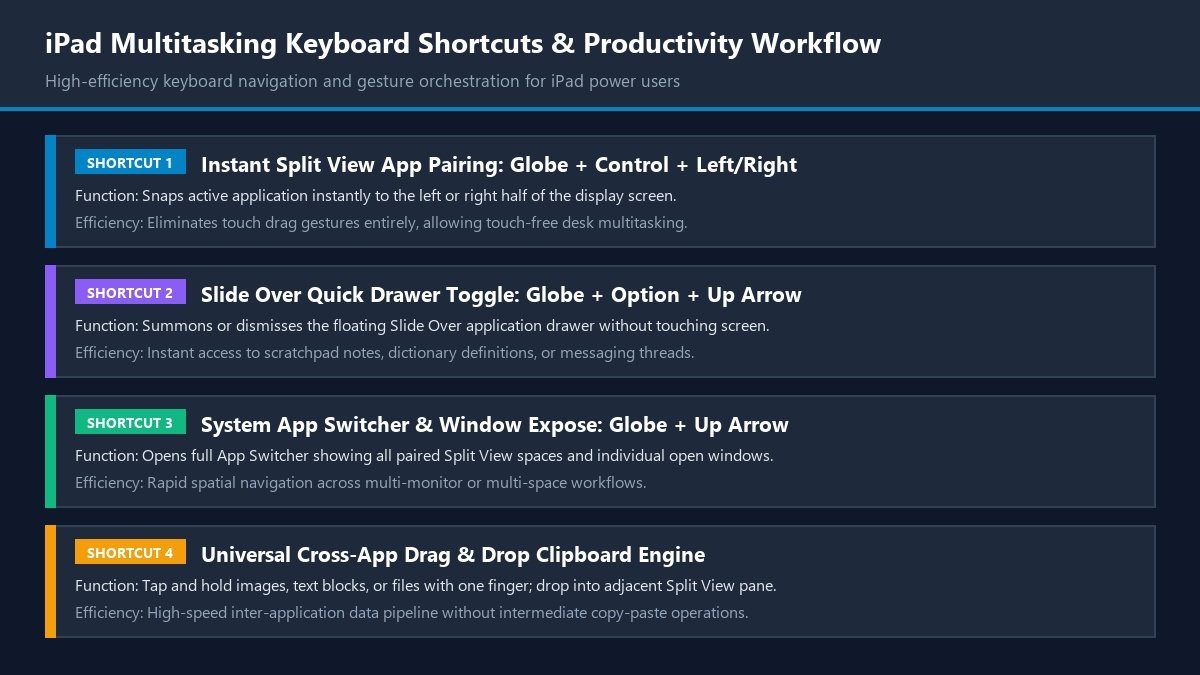
Figure 5: Essential keyboard shortcuts for navigating Split View, Slide Over, and Stage Manager.
| Shortcut Combination | Operating System Function | Multitasking Mode | Productivity Value |
|---|---|---|---|
| Globe + Control + Left Arrow | Tile Active App to Left Screen Half | Split View | Instantly initiates a split view pairing without touch drag gestures. |
| Globe + Control + Right Arrow | Tile Active App to Right Screen Half | Split View | Positions secondary reference apps instantly on the right pane. |
| Globe + Option + Up Arrow | Toggle Slide Over Floating Drawer | Slide Over | Summons or dismisses quick calculator or messaging overlays touch-free. |
| Globe + Up Arrow | Open System App Switcher | All Modes | Displays all active split spaces, full-screen apps, and background tasks. |
| Globe + Down Arrow | App Exposé (Show Open Windows) | All Modes | Reveals all active instances and paired windows for the current application. |
| Command + Tab | Cycle Through Recent Applications | All Modes | Familiar desktop application switcher for high-speed context switching. |
Safari Dual-Window Productivity: Splitting the Web Browser
Research workflows often require comparing two websites simultaneously. iPadOS provides deep support for multi-window Safari sessions, allowing you to split your web browser into two fully independent browsing windows.
How to Open Two Safari Windows Side-by-Side
There are three convenient ways to split Safari:
- Drag a Tab to the Screen Edge: With Safari open and multiple tabs loaded, press and hold any tab in the top tab bar. Drag it toward the extreme left or right edge of the screen until the split boundary appears, then drop it. The tab detaches into its own independent browser window.
- Long-Press a Hyperlink: When reading a webpage, press and hold any hyperlink. In the contextual menu that appears, tap Open in Split View. The linked page opens immediately in an adjacent window.
- Command-Line / Keyboard Method: Press Command + N while in Safari to spawn a new browsing window, then drag its header to the side to create an instant dual-screen browsing environment.
Hardware Performance and Battery Optimization
Operating multiple simultaneous application contexts requires sustained hardware throughput. While modern Apple chips deliver extraordinary energy efficiency, optimizing settings preserves battery longevity during long mobile sessions:
- Manage Background App Refresh: Navigate to Settings > General > Background App Refresh. Disable background synchronization for non-essential applications to free up CPU cycles and RAM.
- Display Brightness Management: Driving two active rendering contexts alongside 120Hz ProMotion display refresh rates increases backlight power consumption. Operating at 50% to 60% brightness substantially extends battery runtime.
- Low Power Mode Dynamics: When your battery drops below twenty percent, enabling Low Power Mode maintains active Split View sessions while gracefully pausing background daemons and reducing ProMotion refresh to 60Hz.
Frequently Asked Questions About iPad Split Screen
Can every iPad model use Split View?
Split View is supported on virtually all modern iPads running iPadOS 13 or later, including iPad Pro (all models), iPad Air 2 and later, iPad 5th generation and later, and iPad mini 4 and later. However, advanced Stage Manager features require an iPad with Apple Silicon (M1, M2, M4) or select iPad Pro models from 2018 and 2020.
Can I split screen three apps at the same time?
Yes. You can run two applications in Split View (50:50 or 70:30) and add a third application floating in Slide Over. In addition, you can have a fourth video stream running in Picture in Picture, giving you four simultaneous active application contexts on a single tablet screen.
Why do some apps refuse to open in Split View?
App developers can choose to disable multitasking support by setting the UIRequiresFullScreen flag in their software configuration. This is common in complex 3D video games, audio recording suites, or specialized utilities that require fixed screen geometry.
How do I switch back to a single app from split screen?
Simply touch the central black divider bar and drag it completely off the left or right edge of your display screen. The application you drag away from will expand to take over the entire screen. Alternatively, tap the three-dot button at the top of the app you want to keep and select Full Screen.
Does split screen drain the iPad battery faster?
Running two active applications side-by-side increases GPU rendering and memory bandwidth consumption compared to running a single static application. While the battery impact is noticeable during intense workloads (such as 4K video editing paired with web browsing), typical document editing and research show only a modest ten to fifteen percent increase in power draw.
Enterprise Deployment and Education Use Cases
Across corporate boardrooms and higher education lecture halls, split screen workflows have transformed standard tablet computing. In educational settings, students commonly position digital textbook readers on the left pane while compiling structured notes in GoodNotes or Notability on the right. With an Apple Pencil, students can annotate lecture slides while simultaneously transcribing spoken audio via ambient transcription software.
In enterprise sales and financial auditing, analysts pair custom enterprise resource planning (ERP) portals alongside real-time communication channels. Having live financial ledgers visible while conversing with clients ensures data accuracy without cumbersome window minimization. The ability to save paired application states directly into the App Switcher ensures that complex operational workflows remain instantly recoverable throughout the business day.
Detailed Comparison: Apple iPadOS vs. Android Tablet Multitasking
To evaluate iPad multitasking objectively, one must compare it against competing tablet ecosystems, primarily Android tablet implementations (such as Samsung DeX and Google Android tablet windowing).
| Multitasking Dimension | Apple iPadOS (Split View & Stage Manager) | Samsung DeX / Android Tablet Ecosystem |
|---|---|---|
| Window Layout Flexibility | Curated snapping: 50:50, 70:30, or floating Stage Manager clusters. | Unconstrained desktop-style floating windows with full freeform scaling. |
| Touch Interface Polish | Exceptional touch target physics, haptic feedback, and fluid momentum. | Functional but occasionally finicky on small touch targets; optimized for mouse. |
| External Display Capabilities | True independent 6K desktop extension on Apple Silicon (M1/M2/M4). | Standalone desktop environment with taskbar; wide monitor aspect ratio support. |
| Developer App Adaptation | Over 95% of mainstream tablet apps support dynamic resizing gracefully. | Variable; many phone apps stretch awkwardly without adaptive layouts. |
While Android and Samsung DeX provide an experience closer to conventional Microsoft Windows, Apple’s implementation prioritizes touch responsiveness, consistent app layout reflows, and rigorous memory sandboxing. The result is a multitasking system that rarely stutters, maintaining sixty frames per second even when driving demanding creative tools.
Step-by-Step Walkthrough: Building the Ultimate Research Workspace
To synthesize all these techniques into a unified daily routine, let us walk through configuring a professional research setup from scratch:
- Launch your primary writing tool (Apple Pages, Microsoft Word, or Google Docs).
- Tap the three-dot button at the top and select Split View.
- From your Dock, select Safari to position your web research alongside your manuscript.
- Adjust the central divider to grant seventy percent of the display to your document, keeping thirty percent for reference reading.
- Swipe up from the bottom to reveal the Dock, press and hold the Notes icon, and drag it into the center of the screen to create a floating Slide Over scratchpad.
- Start a video lecture or podcast in Safari or YouTube, swipe up to send it into Picture in Picture, and tuck it into the top-right corner.
You now possess a complete digital workstation: your primary drafting tool, an active reference browser, a floating scratchpad for temporary notes, and an active video stream, all running concurrently without a single window minimization.
The Historical Evolution of iPad Multitasking: From iOS 9 to iPadOS
The ability to split screen on an iPad did not emerge overnight; it represents over a decade of continuous architectural refinement by Apple’s software engineering teams. When the original iPad launched in 2010, the operating system was essentially an expanded version of iPhone OS. Each application occupied the entire display, and switching between tasks required pressing the physical Home button, returning to the app grid, and launching another program.
The initial breakthrough arrived in 2015 with iOS 9, powered by the triple-core A8X processor inside the iPad Air 2. For the first time, Apple introduced Slide Over, Picture in Picture, and Split View. However, this early implementation was constrained: you could only select secondary applications from a primitive, non-searchable horizontal scrolling list of icons, and both windows shared a single audio output channel.
In 2017, iOS 11 revolutionized the iPad experience by introducing a customizable application Dock, a redesigned multi-touch App Switcher, and system-wide asynchronous drag-and-drop. Users were no longer restricted to rigid app picker lists; any application residing in the Dock could be pulled into an active workspace.
The transformation culminated with the formal separation of iPadOS from iOS. iPadOS introduced multi-window support for individual applications (such as running two separate Microsoft Word documents or Safari windows side-by-side), App Exposé, and eventually Stage Manager. This evolution highlights Apple’s enduring product philosophy: preserving touch-first elegance for casual users while progressively layering desktop capabilities for power professionals.
Architectural Deep-Dive: The SpringBoard Compositor and UIKit Scene Lifecycle
To understand how an iPad manages dual applications without frame drops or thermal throttling, one must inspect the software architecture operating beneath the glass. In iPadOS, application windows are managed by the SpringBoard compositor and the UIKit framework.
In classical iOS, an application had a single UIWindow associated with a single UIScreen. To enable true multitasking, Apple completely re-engineered this model around UIWindowScene objects. When you initiate a Split View session, the operating system instantiates two distinct scene sessions:
- Independent Coordinate Spaces: Each application pane receives its own virtual coordinate boundary and display scale factor. Applications do not know they are running on a split screen; they simply receive layout notifications indicating that their available width has adjusted from full width (e.g., 1024 points) to a compact size class (e.g., 504 points).
- Adaptive Auto Layout Reflow: Well-designed iPadOS applications leverage responsive Auto Layout constraints. When an application transitions from full screen to a 50:50 or 70:30 Split View, its user interface reflows smoothly from a multi-column desktop layout to an iPhone-style single-column navigation hierarchy.
- Compositor Frame Synchronization: The SpringBoard compositor coordinates GPU rendering layers via Metal. Even when two distinct apps are executing complex graphic animations simultaneously, the window server synchronizes display refresh intervals, ensuring zero screen tearing or stuttering across the central divider.
Professional Disciplinary Workflows: Real-World Case Studies
The practical utility of iPad split screen extends across diverse professional domains. By analyzing real-world workflows, users can optimize their own application pairings.
1. Graphic Designers and Digital Illustrators
Digital artists pairing an iPad with an Apple Pencil routinely place Procreate or Adobe Fresco on seventy percent of the display. On the remaining thirty percent, they open Pinterest, Safari, or the Files app. This arrangement allows the illustrator to keep mood boards, color palettes, and anatomical reference photographs visible while drawing, eliminating the need to toggle between reference apps and interrupting creative momentum.
2. Software Developers and Technical Authors
Engineers utilizing modern web development IDEs (such as GitHub Codespaces, Blink Shell, or Swift Playgrounds) pair their code editor on the left with an active Safari preview or API documentation on the right. Using hardware keyboard shortcuts, developers can edit code, save files, and watch local web server live-reloads update in the adjacent pane in real time.
3. Medical Practitioners and Clinical Staff
In hospital environments, physicians utilize iPads during patient rounds. By pairing electronic health record (EHR) charts on the primary pane alongside a diagnostic medical imaging viewer (PACS) on the secondary pane, clinicians can discuss radiographic scans directly with patients while updating treatment notes simultaneously.
4. Legal Professionals and Financial Auditors
Attorneys auditing contracts position legal drafting software alongside statutory reference databases or PDF evidence binders. The ability to cross-reference contractual clauses against deposition transcripts while annotating text using the Apple Pencil drastically reduces administrative review time.
Universal Control and Sidecar: Expanding Beyond the iPad Display
Power users frequently operate in multi-device Apple hardware environments. Understanding how iPadOS multitasking interoperates with macOS hardware unlocks extraordinary flexibility through two companion technologies: Universal Control and Sidecar.
While both features bridge the iPad and Mac, they address fundamentally different computing paradigms:
- Universal Control (Hardware Sharing): Places your iPad physically adjacent to your Mac desktop or MacBook. Without any physical cable or setup wizard, moving your Mac mouse pointer past the edge of your computer monitor causes the cursor to glide across onto the iPad display. You can control your iPad’s Split View windows using your Mac’s mechanical keyboard and trackpad, while retaining full iPadOS touch capabilities. In addition, you can drag and drop raw files, photos, and project assets across the boundary between macOS and iPadOS directly.
- Sidecar (Secondary Monitor Extension): Converts your iPad into an external hardware display for your Mac. Rather than running iPadOS apps in Split View, your iPad acts as a secondary macOS monitor. You can drag Mac windows (such as Final Cut Pro timelines or Xcode simulators) onto the iPad screen, and use your Apple Pencil to sketch directly within desktop macOS creative applications.
Accessibility Multi-Touch Features: AssistiveTouch and Custom Gestures
For users with motor impairments or those who find complex multi-finger pinching gestures difficult, iPadOS provides comprehensive accessibility features that make split screen multitasking effortless:
- AssistiveTouch On-Screen Menu: Navigate to Settings > Accessibility > Touch > AssistiveTouch. You can customize the top-level floating menu to add direct buttons for “Split View Left,” “Split View Right,” and “App Switcher.” This allows users to tile applications with single-tap precision rather than requiring dragging gestures.
- Switch Control Integration: Users navigating iPadOS via external adaptive switches or head-tracking hardware can assign split screen windowing commands to specific switch actions, ensuring full parity for motor-impaired professionals.
- Pointer Control Tweaks: When using an external mouse or trackpad, open Settings > Accessibility > Pointer Control. Adjusting pointer size, scrolling speed, and contrast ensures that targeting the thin central divider handle is effortless.
Split Screen in Audio and Creative Production: Managing CoreAudio Streams
Creative professionals utilizing professional audio workstations (such as Logic Pro for iPad, Cubasis, or Ferrite Recording Studio) face unique multitasking challenges regarding audio focus and buffer latency. In desktop environments, multiple applications can output audio simultaneously without conflict. On iPadOS, background audio routing requires deliberate configuration.
When running two creative applications side-by-side in Split View:
- Inter-App Audio and AUv3 Plugins: Rather than running separate standalone audio engines, modern iPadOS uses Audio Unit Version 3 (AUv3) plugins. You can host digital synthesizers, drum machines, and audio effect racks directly inside Logic Pro while keeping a podcast reference or lyrics notepad open on the adjacent thirty percent pane.
- Preventing Background Audio Ducking: By default, some media playback applications pause when they lose primary active window focus. In professional apps like Ferrite or Logic Pro, navigate to application settings and enable “Play Audio in Background.” This setting ensures that scrubbing audio timelines or recording voiceovers continues without interruption even when interacting with reference documents in the companion window.
- Hardware USB-C Audio Interfaces: When connecting class-compliant USB-C audio interfaces (such as Focusrite Scarlett or Universal Audio Volt), iPadOS routes multichannel audio seamlessly across paired Split View applications. You can monitor input levels on a mixer app while capturing multi-track stems in your primary recording suite with zero latency penalty.
Split Screen for Gaming, Live Streaming, and Community Moderation
For mobile gamers, content creators, and community managers, iPad multitasking provides a streamlined live streaming and communications control center. While playing tactical strategy games or mobile role-playing games on the primary seventy percent screen pane, creators can keep Discord, Twitch chat, or YouTube Studio open on the secondary thirty percent pane.
This layout allows creators to interact directly with viewers, moderate chat channels, and monitor streaming telemetry without requiring a secondary physical computer or smartphone. Using Slide Over, streamers can summon a quick soundboard utility or audio mixer, adjust levels, and dismiss the drawer with a single edge swipe, keeping the primary game screen uninterrupted.